Trigger ad-hoc PR tests from GitHub comments
export const meta = { title: 'Trigger ad-hoc PR tests from GitHub comments', description: 'Run an ad-hoc Canary test directly from a GitHub pull request comment, then follow progress and review results in both GitHub and Canary.', tags: ['guide', 'github', 'pull-requests', 'ad-hoc-testing'], };
Run an ad-hoc Canary test without leaving your pull request workflow. Mention Canary in a PR comment to launch a run, then track progress in GitHub and review the full results in Canary.
01Before you start
Make sure you have the access and context needed to run the test successfully.
- Connect your GitHub repository to Canary before you try to launch a PR test.
- Confirm the pull request is associated with the work you want to validate.
- Make sure you can comment on the pull request in GitHub.
- Make sure the workflow or ad-hoc test you want to run is available in your Canary property.
- If your team uses multiple environments or saved configurations, decide which environment or scenario you want to test before you trigger the run.
This workflow is useful when you want to validate a change quickly during code review, reproduce a bug reported on a PR, or share test results back into the pull request conversation.
02Connect the pull request to Canary
Before GitHub comments can trigger a Canary run, your PR needs to be part of a repository that Canary can see and associate with your property.
- Open Canary and go to the repository or release configuration used for your team.
- Confirm the GitHub repository for the pull request is connected to your Canary property.
- Verify that the pull request appears in the expected repository context in Canary.
- If your team uses release or PR-based workflows, confirm the relevant workflow is ready to run against the PR changes.
If the repository is not connected yet, set up the GitHub integration first, then return to your pull request and try again. For broader setup guidance, see related GitHub and release workflow documentation in your workspace.
03Trigger an ad-hoc PR test from a GitHub comment
Once the repository and PR are connected, launch the test directly from the pull request conversation.
- Open the pull request in GitHub.
- Add a new comment or reply in an existing thread.
- Mention Canary in the comment to request an ad-hoc PR test.
- Post the comment.
- Watch for Canary to post an in-progress update back to the pull request.
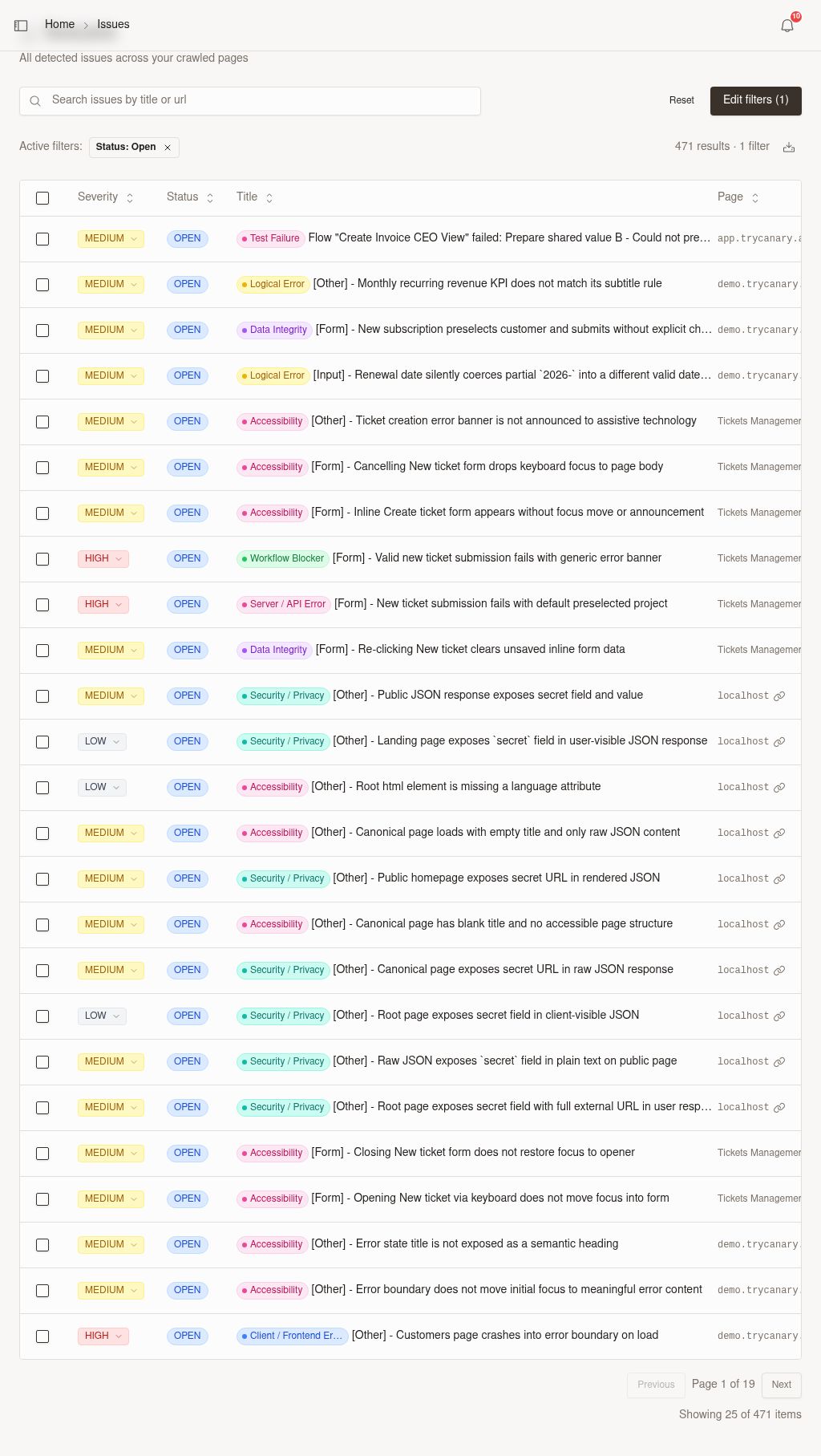
After you post the comment, Canary acknowledges the request in the PR so everyone can see that the run started. Canary then follows up in the same conversation with clearer status updates and durable result links when the run finishes.
Use this flow when you want to keep test requests visible in the same place as review feedback. It helps reviewers, QA, and developers follow the request without switching tools.
04Monitor progress and results in GitHub
After you post the comment, Canary writes status updates back into the pull request conversation. This gives everyone reviewing the PR a shared view of the test state.
Look for updates such as:
| Update | What it means |
|---|---|
| Run acknowledged | Canary received your request and is preparing the test |
| Run in progress | Canary posted an in-progress status so reviewers know the ad-hoc PR test is still running |
| Run passed | The requested test completed successfully with a clearer result summary |
| Run failed | The test completed with one or more failures, along with links to issues or evidence when available |
| Run link posted | Canary added links to the full report and a permanent recording you can open or share later |
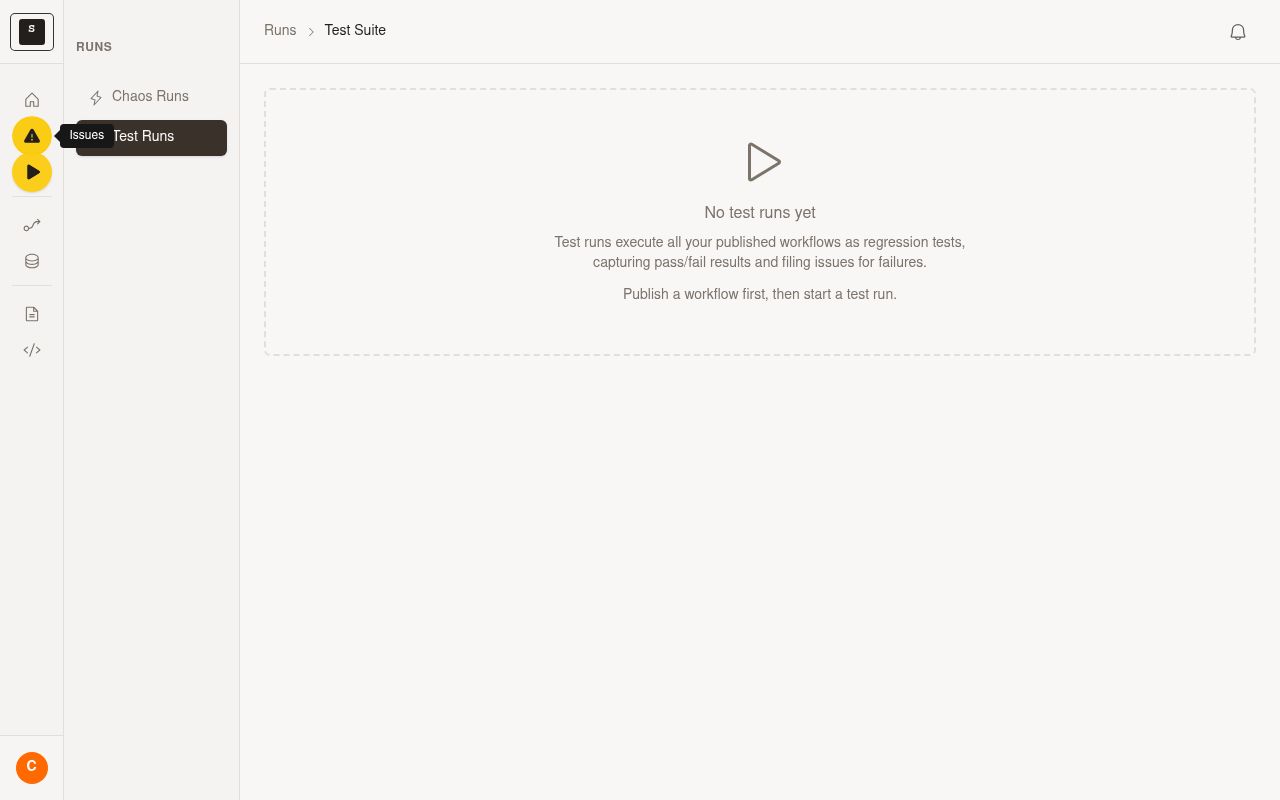
The writebacks now include more useful context directly in GitHub. Expect clearer summaries, a link to the Canary run, and a permanent recording link that does not expire. Use these links directly from the PR when you need to review evidence or send results to another reviewer.
If you do not see an update right away, refresh the pull request page and check that your original comment was posted successfully.
05Review the run in Canary
Use the links written back to the PR to open the full run details in Canary.
- In GitHub, open the Canary status update or final result comment.
- Click the run report link to review the full result in Canary.
- Click the permanent recording link when you want a durable playback link to revisit or share.
- Review the run summary, status, and any recorded steps or evidence.
- Check screenshots, recordings, and linked issues if the run found problems.
- Confirm the run used the intended PR context.
- Share the run report link or permanent recording link in follow-up review comments if teammates need more detail.
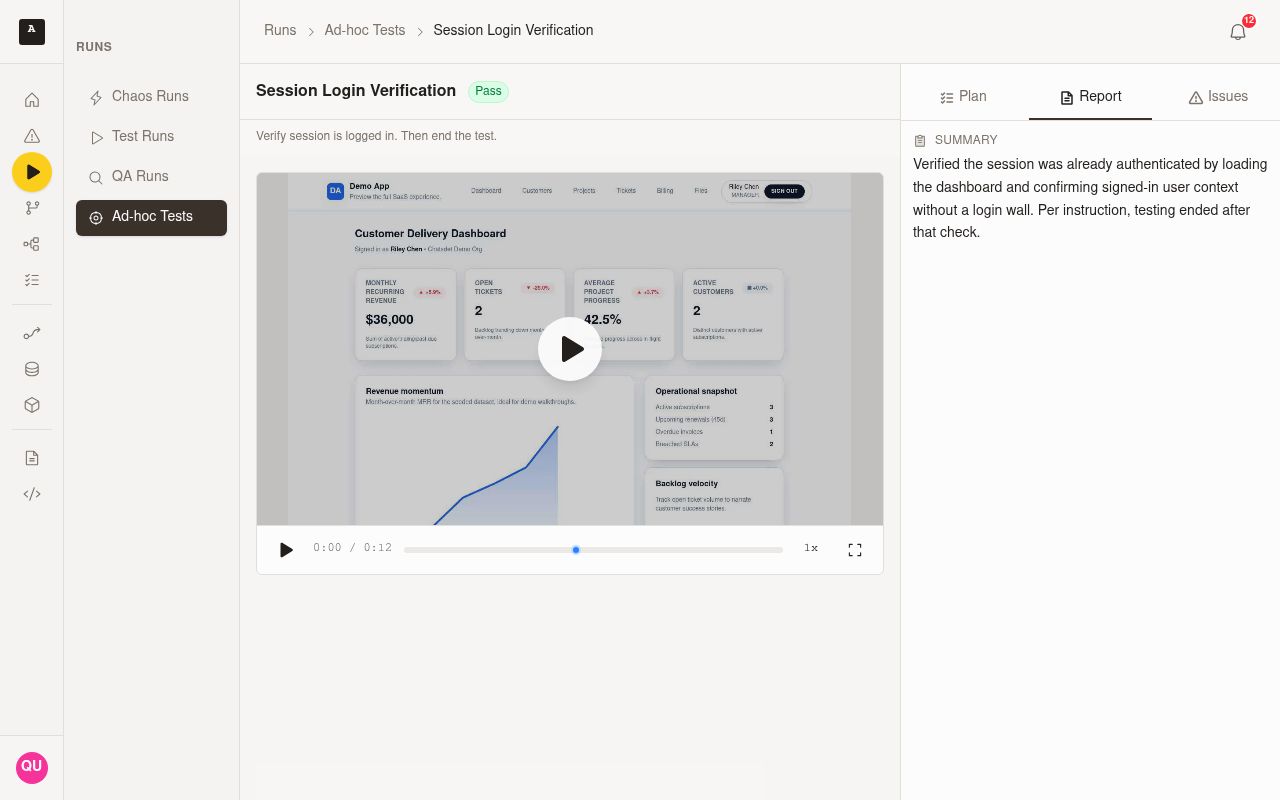
Canary's final writeback is the fastest way to jump from GitHub into the full report. Use the run report link when you want complete run details in Canary, and use the permanent recording link when you need a stable link that will not expire.
If your team uses saved run configurations, you may also want to compare the PR test against a different environment or scenario in a separate run. To learn more about reusable inputs and saved configurations, see /docs/guides/running-workflows-with-scenarios.
06Troubleshooting
If the PR test does not start or the results are not written back as expected, check these common issues.
| Issue | What to check |
|---|---|
| Canary does not respond to the comment | Confirm the repository is connected to Canary and the PR belongs to that connected repository |
| The wrong PR seems to be tested | Make sure you posted the comment on the intended pull request |
| The run starts but does not reflect the expected setup | Verify the workflow, environment, and any saved scenario your team expects to use |
| No result appears in GitHub | Refresh the PR page, then open Canary directly to see whether the run is still in progress |
| You cannot trigger the run | Confirm you have permission to comment on the PR and access the relevant Canary property |
If the run reaches Canary but fails during execution, review the run details in Canary first. Use the recorded results there to decide whether the problem is with the application change, the selected test setup, or the environment being tested.
07Next steps
After your first PR-triggered ad-hoc test, use these related guides to expand your workflow:
- Learn how to reuse saved inputs and credentials with scenarios in
/docs/guides/running-workflows-with-scenarios - Review release-focused validation flows in
/docs/guides/release-qa - Explore GitHub-based review and testing workflows available in your Canary property
PR comment triggers work best when your team treats the pull request as the shared source of truth for validation. Open results directly from Canary's PR writebacks, and share the permanent recording link when reviewers need durable evidence they can revisit later.