Site Graph
export const meta = { title: 'Site Graph', description: 'Understand how pages connect across your property with a Site Graph built from observed page activity.', tags: ['reference'], };
Site Graph helps you understand how pages connect across your property. It builds a visual map from observed page activity so you can spot relationships, follow navigation patterns, and identify gaps in coverage.
01When to use Site Graph
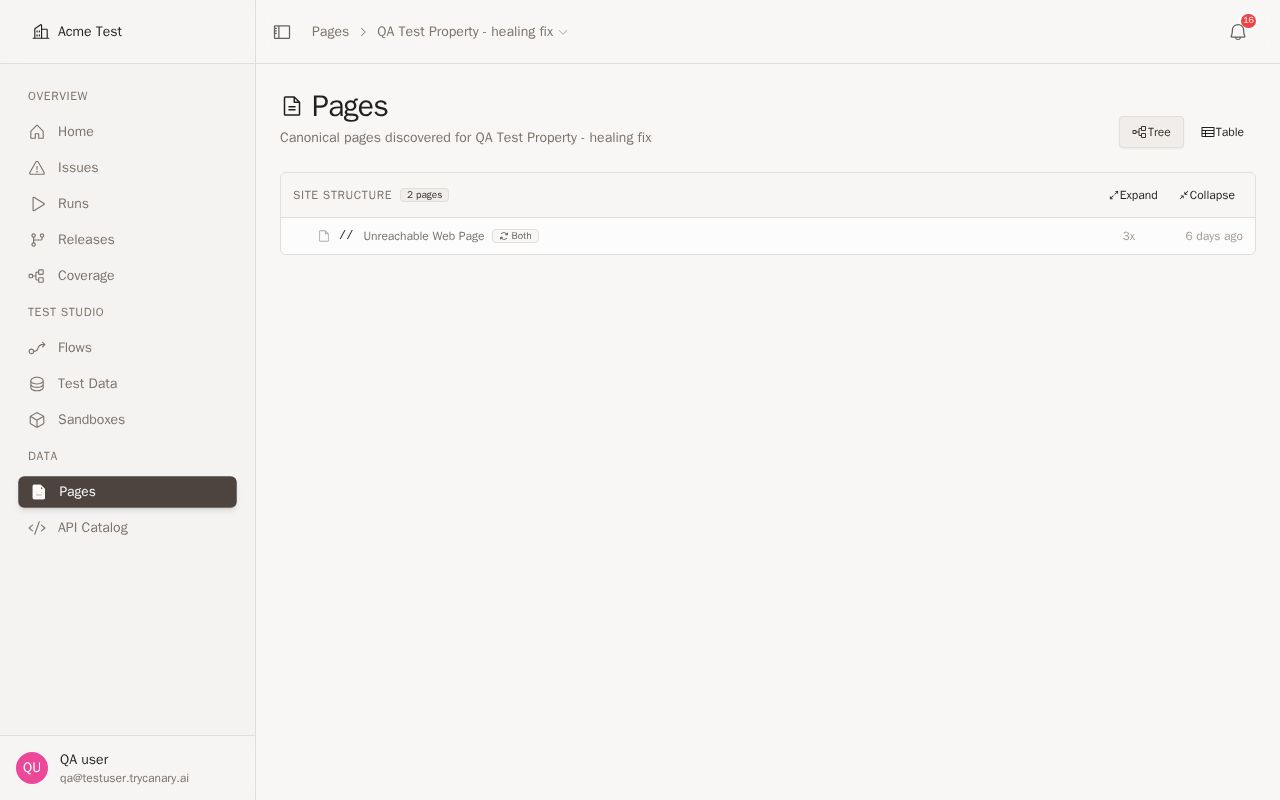
Use Site Graph when you want to understand how pages relate to each other through observed navigation. Use the Pages tree when you want to browse discovered pages by path hierarchy and quickly scan site structure.
Use this guide to choose the right view:
| View | Use it when you want to | Best for |
|---|---|---|
| Site Graph | See how pages connect based on observed movement between pages | Navigation patterns, connected journeys, isolated pages, and gaps in observed coverage |
| Pages tree | Browse pages grouped by URL path structure | Site sections, entrypoints, nested routes, and dynamic route organization |
If you need a path-based inventory of discovered pages, go to /docs/reference/pages. If you need to understand which pages are actually connected through observed activity, stay in Site Graph.
Common use cases include:
- Reviewing how key pages connect as users move through the product
- Finding pages that appear isolated or difficult to reach
- Identifying missing paths in important user journeys
- Understanding navigation patterns before updating tests, workflows, or application knowledge
- Exploring unfamiliar areas of a property more quickly when path hierarchy alone is not enough
02How Site Graph is built
Site Graph is generated from observed page activity in your property. As activity is captured, Canary identifies pages and the relationships between those pages, then adds them to the graph so you can explore the structure visually.
Observed activity and page relationships
Observed activity comes from the page visits and movements Canary sees across your property. When Canary observes transitions between pages, it uses that activity to infer how those pages relate to each other.
This means the graph reflects real observed usage rather than a manually maintained sitemap. As more activity is captured, the graph becomes more useful for understanding how pages are actually connected.
What the graph includes
The graph includes pages that Canary has observed and the connections between those pages. Each connection represents a relationship inferred from observed activity.
Canary also detects dynamic URL patterns and groups similar slugs when that produces a clearer view of the graph. Slug detection is more accurate, so dynamic paths are less likely to be grouped incorrectly and related pages are easier to interpret.
If the automatic grouping is not correct for your property, use the manual grouping controls in the graph to override how those patterns are displayed.
Depending on the activity available in your property, the graph can help you see:
- Frequently connected pages
- Areas with sparse or missing relationships
- Navigation paths through important sections of the property
- Pages that may need more observation before their relationships are clear
03Exploring the graph
Use the Site Graph to move from a high-level view of the property to specific page relationships. Start by scanning for major clusters and then inspect individual pages and connections to understand how users navigate.
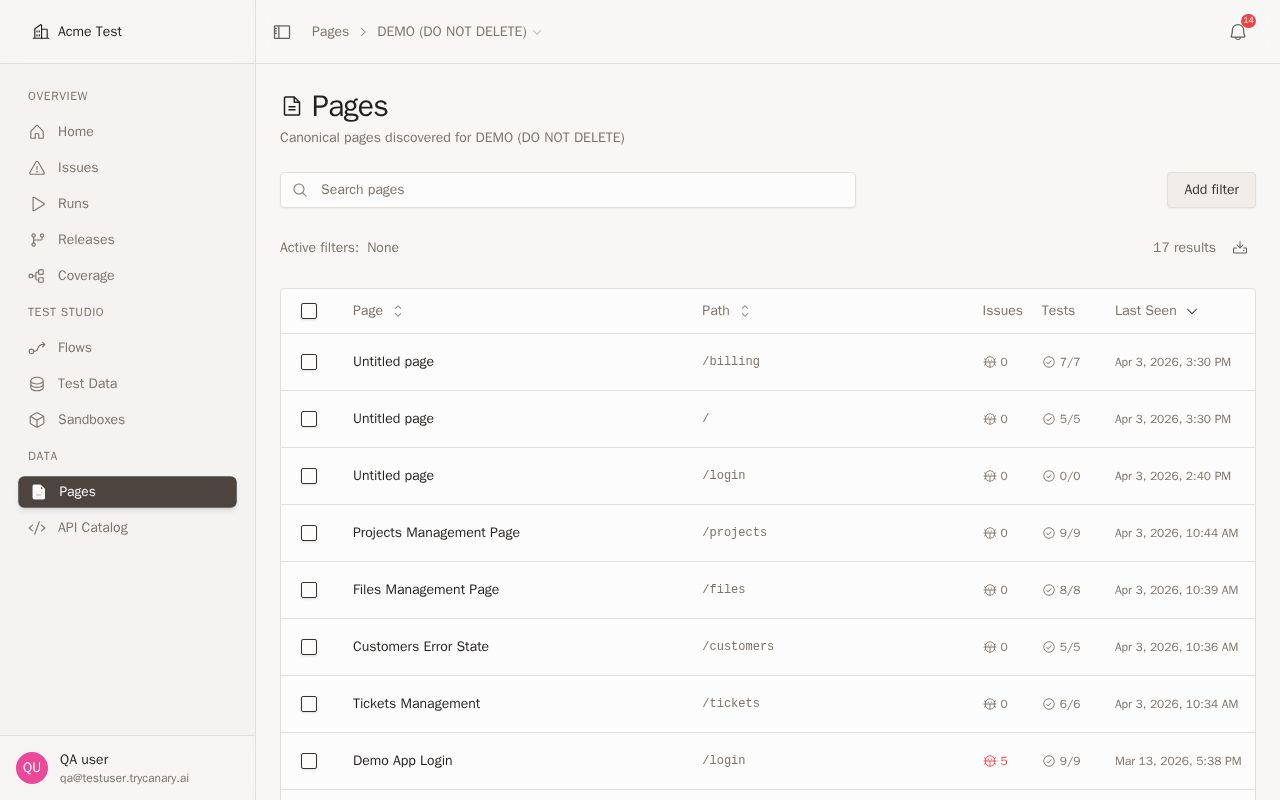
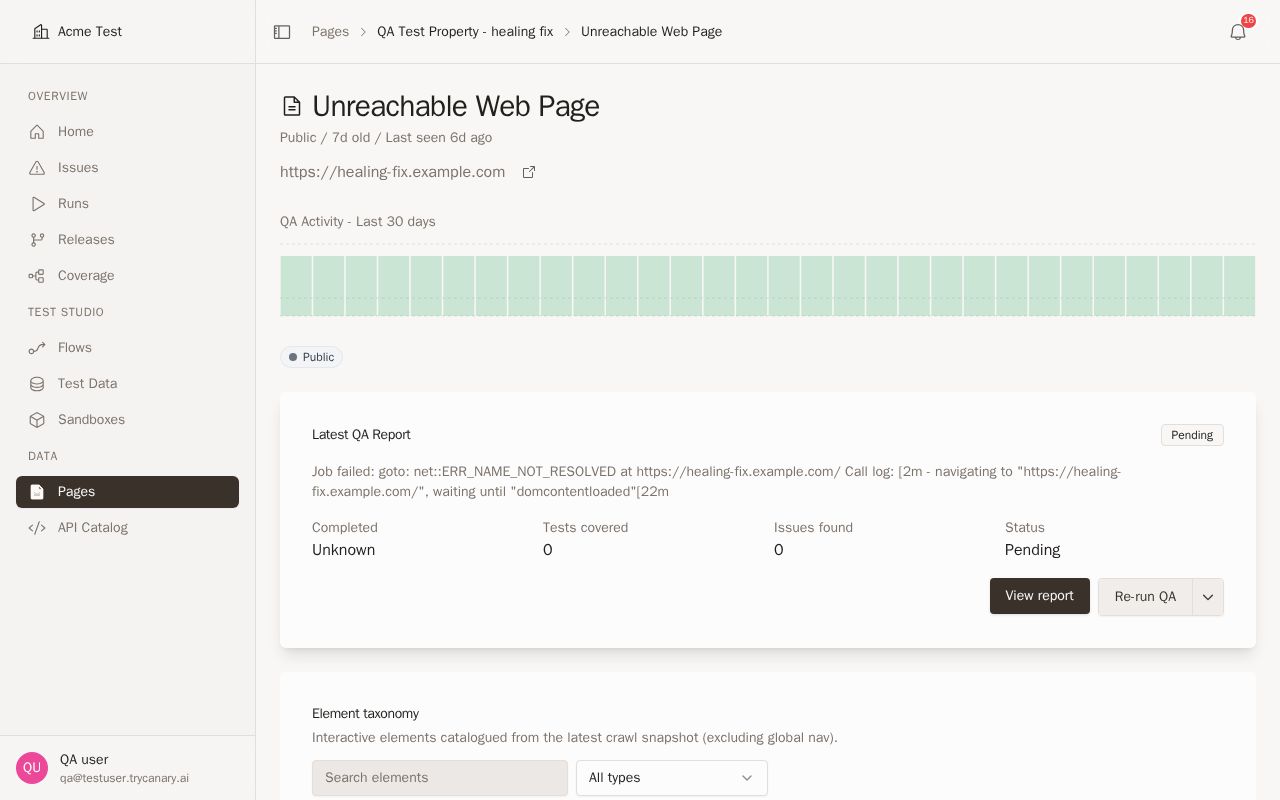
If you want to compare visual navigation relationships with path-based structure, open the Pages tree in /docs/reference/pages. Use Site Graph to answer how pages connect in practice, then use the Pages tree to confirm where those pages live in the site's hierarchy.
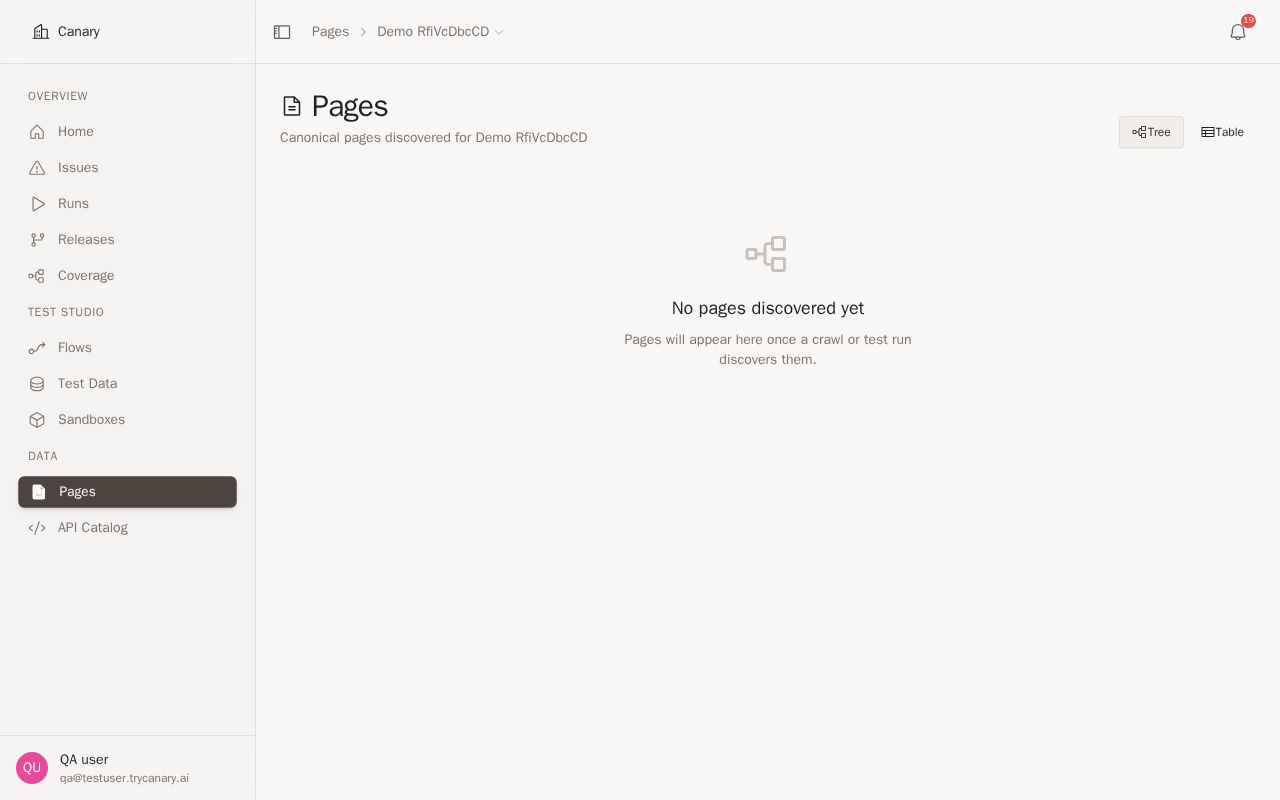
Nodes and connections
In the graph, nodes represent observed pages and connections represent observed relationships between pages. Together, they give you a visual model of how different parts of the property relate to each other.
Look for dense clusters to find heavily connected areas. Look for isolated nodes or thinly connected sections to find pages that may be hard to reach or under-observed.
Dynamic routes may appear as grouped patterns when Canary detects that multiple observed URLs represent the same path structure. Improved slug detection helps these patterns match the structure of your property more reliably.
Using the graph to find gaps and navigation patterns
Use the graph to identify where expected relationships are missing or where navigation appears indirect. This can help you decide where to gather more activity, review page coverage, or update supporting documentation.
When you need to confirm whether a page exists in a section of the site, check the Pages tree. When you need to understand whether users can move between those pages through observed flows, use Site Graph.
For example, you might notice:
- A key page with fewer connections than expected
- A section of the property that is disconnected from the rest of the graph
- A navigation path that takes more steps than expected
- Areas where additional observation could improve the graph
After you identify a gap or pattern, use that insight to refine workflows, expand application context, or investigate related pages in more detail. You can also use the Knowledge Graph chat tools to inspect graph state and answer application questions from graph context. Use Graph Debugger when you want to investigate why pages or relationships appear the way they do, and use Application Expert when you want quick answers about how the application works based on the graph. For more detail, go to /docs/reference/application-context.
Grouping and ungrouping dynamic slugs
Use manual slug grouping controls when the automatic graph structure does not match how you want to inspect dynamic routes.
| Control | Use it to |
|---|---|
| Group | Combine matching dynamic URL patterns into a single grouped node |
| Ungroup | Split a grouped dynamic pattern back into separate observed pages |
Manual overrides change how the graph displays those slug patterns for your property. Use Group when several URLs represent the same route shape and you want to reduce noise. Use Ungroup when a grouped pattern hides detail that you need to inspect.
When you apply a manual override, Canary keeps that choice instead of relying only on automatic detection for that pattern. This gives you a more accurate view when your routing structure is unusual or when different dynamic pages need to stay separate.
Use these controls to clean up large graphs, inspect edge cases, and verify that grouped routes reflect the structure you expect to see.
04Best practices
- Review the graph after capturing activity from important user journeys
- Treat the graph as an observed model of the property, not a complete inventory of every possible page
- Revisit the graph as your property changes so newly observed relationships are reflected
- Use the graph alongside application knowledge and workflow tools to plan better coverage
- Investigate isolated or weakly connected pages to confirm whether they are intentionally separate or simply under-observed