Pages
export const meta = { title: 'Pages', description: 'Review discovered pages, inspect coverage, and understand site structure in your property.', tags: ['reference', 'pages'], };
Use Pages to review discovered URLs, inspect coverage, and understand how your property is organized for the currently selected property.
01Navigating Pages
Open Pages to browse discovered URLs in the context of your current property. Use the property-aware route to stay oriented as you move between page browsing views and other property-specific areas.
Property selection and routing
Select the property you want to review before you inspect pages. When you open Pages, the URL and navigation stay scoped to that property so you can move between views without losing context.
Use the current property selector to confirm you are viewing the right site, then open page details, switch views, or return later using the same property-aware route.
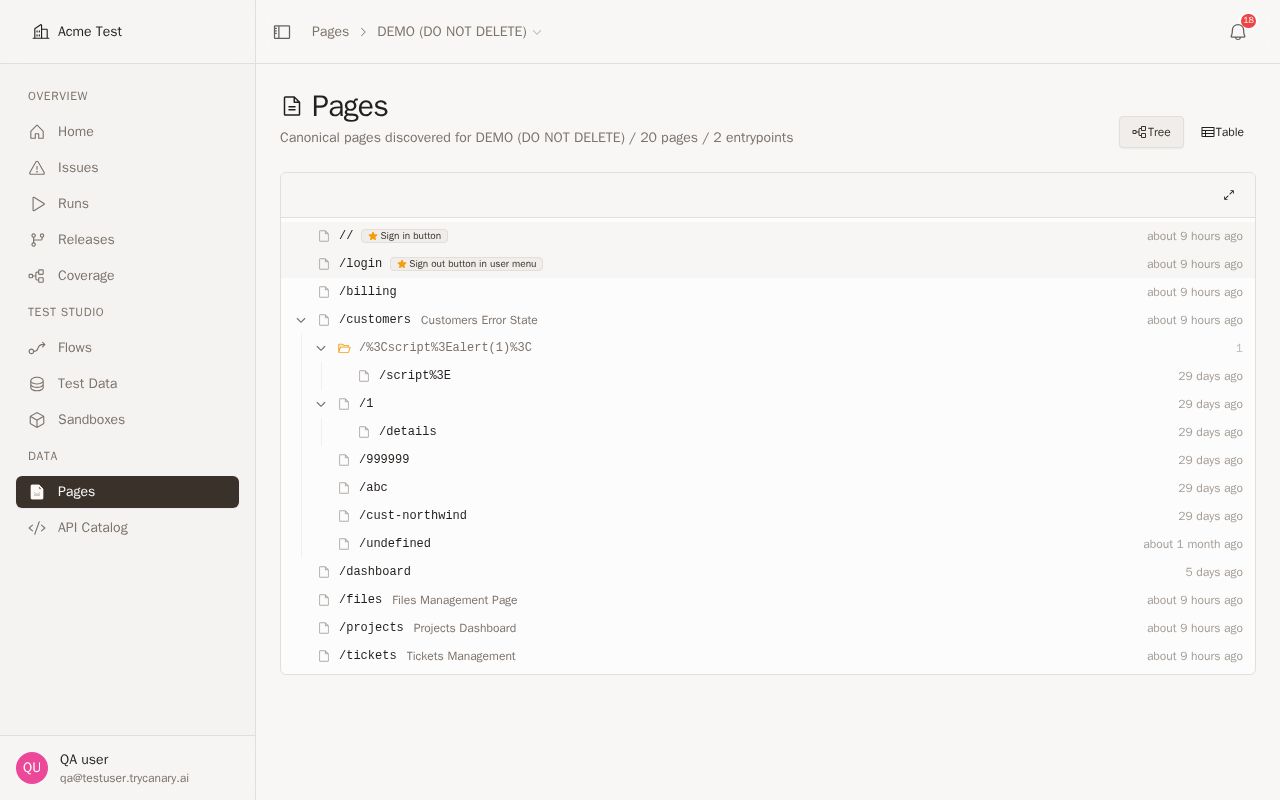
Tree and table views
Switch between Tree and Table views from the top of the Pages workspace. Use Tree to scan your site's structure by path, then switch to Table to search, filter, and sort individual pages.
The tree workflow is simpler and faster for expanding or collapsing sections, which makes it easier to move between a high-level structure review and a detailed page list.
02Pages table
- Filter by status and search by URL/path.
- Use page detail to see history and related issues.
- Switch to Tree view when you need to understand how pages relate to each other by path.
03Canonical grouping and discovered pages
Use Tree view to group discovered pages by path hierarchy. Parent paths appear as folders, and deeper segments appear nested under them so you can scan site structure more quickly.
This view helps you spot likely entrypoints, section-level organization, and dynamic routes at a glance. For example, pages under a shared path stay grouped together, which makes it easier to interpret collections such as /blog/*, /docs/*, or dynamic patterns like /products/[id].
04Using page status to understand coverage
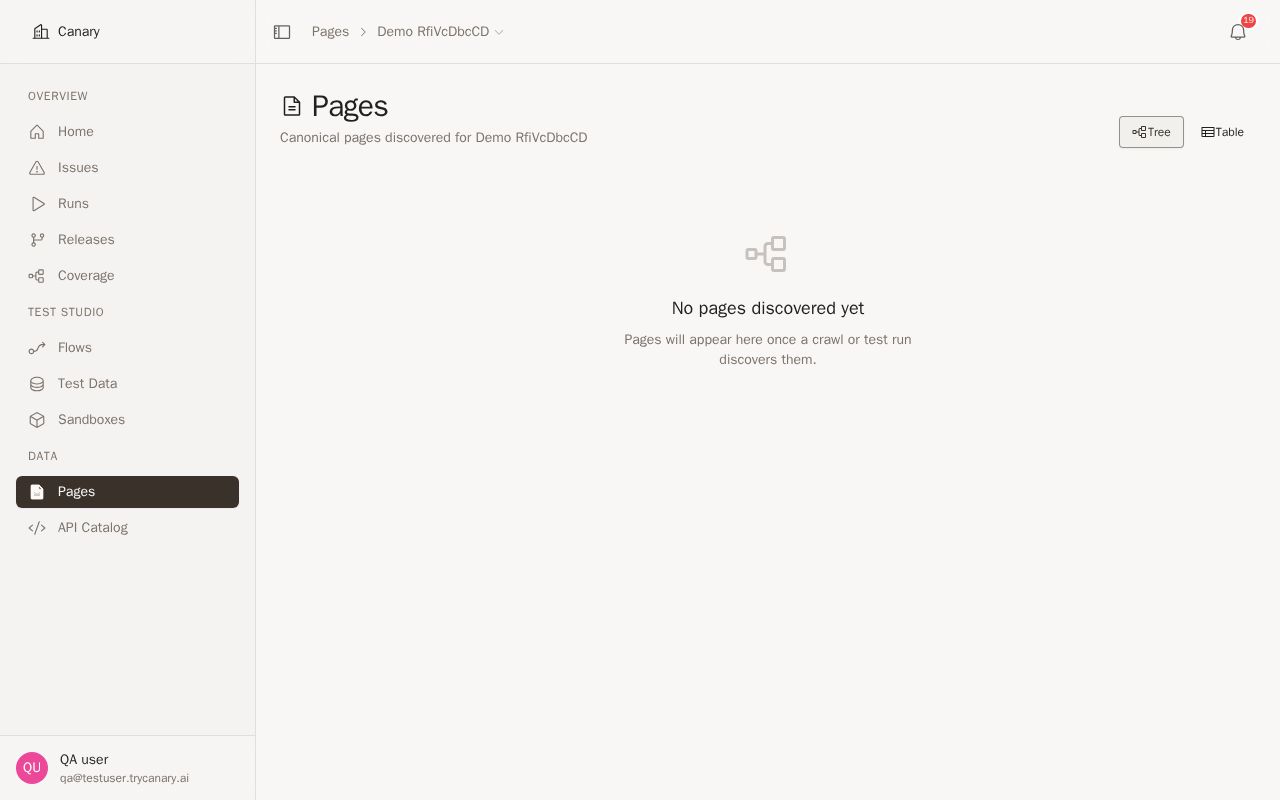
Use page status in either view to understand which parts of your property are covered and which pages may need attention. In Tree view, grouped paths help you see whether coverage is concentrated in one section or missing across an entire branch.
Switch to Table view when you want to filter by status and investigate specific URLs. Use the combination of hierarchy and status to identify uncovered entrypoints, isolated dynamic routes, or sections with inconsistent results.
05Related
- Use Site Graph to understand how pages connect across your property based on observed activity.
- Use Pages alongside Site Graph to review individual page details and analyze your property's overall structure.
- Return to Pages from other property-specific areas to keep page review scoped to the same property.