Superadmin
export const meta = { title: 'Superadmin', description: 'Use Superadmin to monitor the overall system, manage organizations across the property, and perform high-impact administrative actions safely.', tags: ['reference'], };
Superadmin gives you a property-wide administrative view of Canary DEV. Use it to review overall activity, move quickly between organizations, and manage organization access and lifecycle from a single place.
01When to use Superadmin
Use Superadmin when you need to work across organizations instead of inside a single org. It is most useful when you need to review system-wide health, find a specific organization quickly, update memberships, switch into an organization, or take bulk administrative actions.
Common use cases include:
- Reviewing high-level platform activity from a central dashboard
- Finding organizations by name with search and sorting controls
- Changing whether users are members of specific organizations
- Switching into an organization to investigate or verify a setup
- Applying the same administrative action to multiple organizations at once
- Removing organizations with extra confirmation safeguards
- Managing feature flag rollouts across the property
- Investigating event activity through the User events workspace, including Explore, Dashboards, and Slack
- Building reusable SQL-based reporting in User events Dashboards for ongoing event analysis
- Monitoring AI usage and cost through the Token usage dashboard
- Reviewing organization-level AI provider routing and model-tier configuration relevance before troubleshooting AI behavior or spend
02Dashboard overview
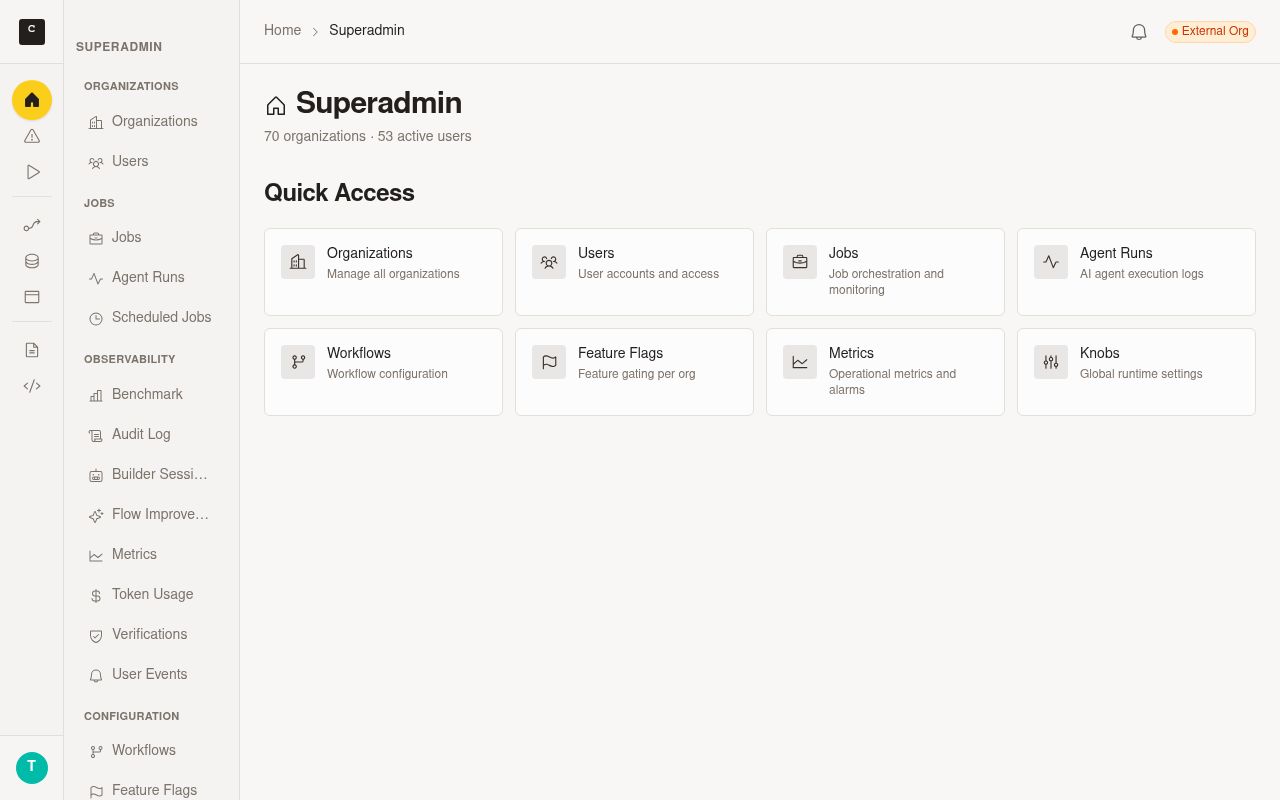
The Superadmin dashboard is the homepage for your admin workspace. It gives you fast entry points into common tasks and a summary of system-wide activity so you can decide where to act next.
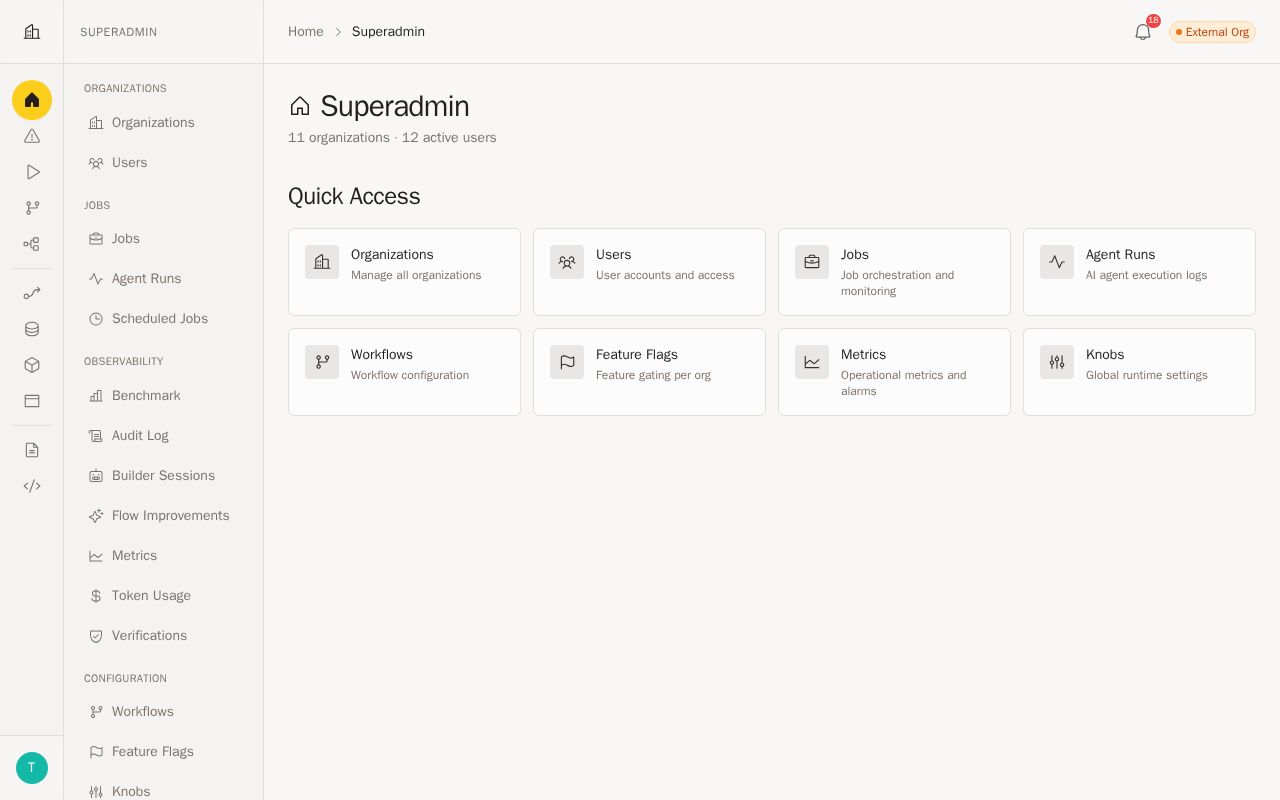
Quick access cards
Use the dashboard cards to jump directly into common Superadmin workflows. These shortcuts help you move into the organizations view and other top-level admin areas without navigating through multiple screens.
Quick access cards are best for:
- Opening the organizations administration view
- Opening diagnostics when you need to investigate workflow or agent activity
- Opening Feature Flags when you need to manage rollouts or verify flag state
- Starting common review and maintenance tasks faster
- Reducing clicks when you already know what area you need
System-wide summary stats
Use the summary stats at the top of the dashboard to get a broad view of activity across the property. These metrics help you spot changes in scale, identify when follow-up may be needed, and prioritize where to look next.
Review these stats before making changes so you start with current context. If a number looks unexpected, open the relevant admin view and investigate before applying bulk actions.
03Organizations
The Organizations view is the main workspace for managing organizations at scale. It combines discovery, filtering, membership controls, switching, and bulk operations in one table-driven interface.
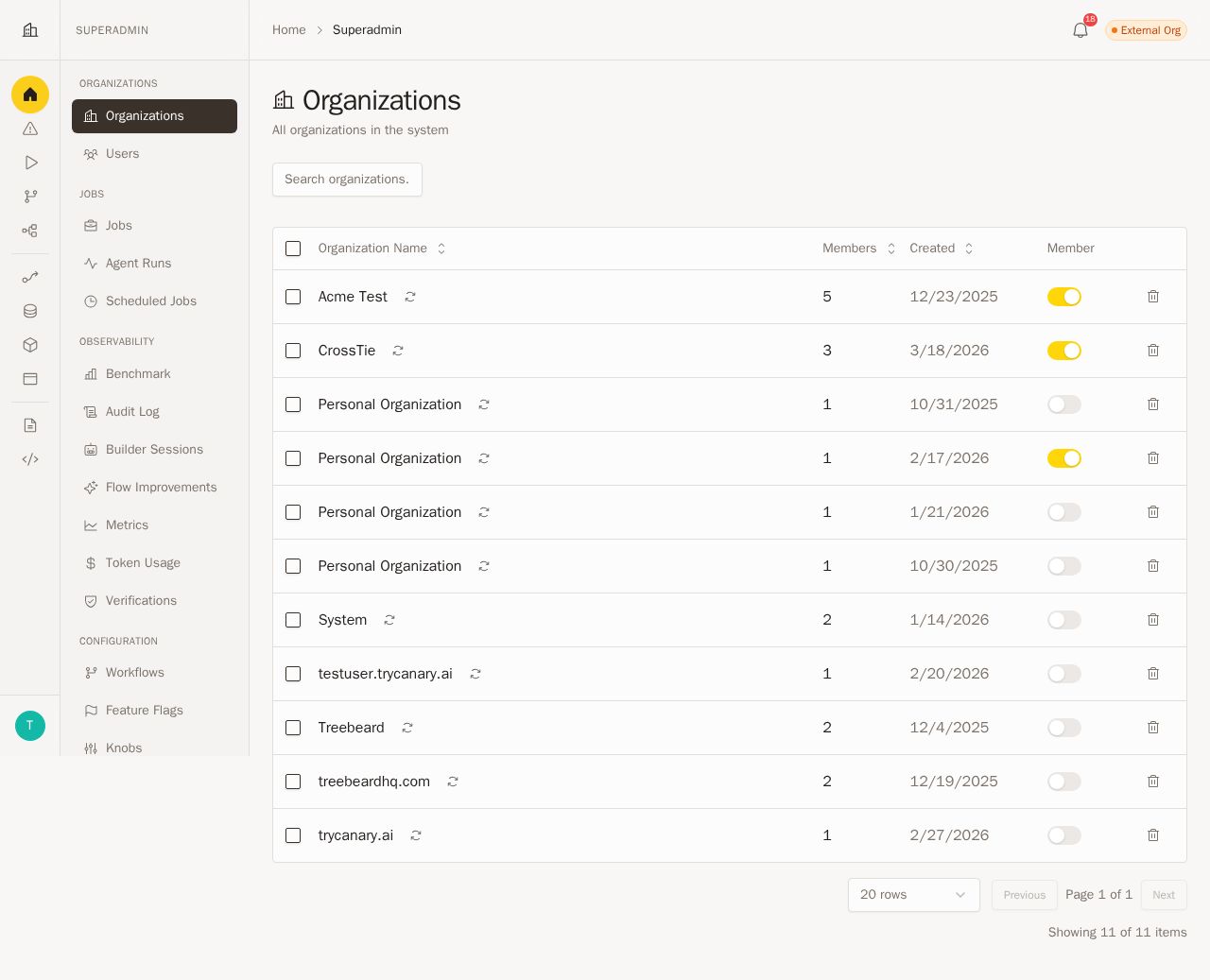
Search, sorting, and pagination
Use search to find a specific organization quickly when you know part of its name. Use column sorting to bring the most relevant organizations to the top of the list, then use pagination controls to move through larger result sets efficiently.
A typical review flow looks like this:
- Open Organizations.
- Enter a search term to narrow the list.
- Sort by the column that best matches your task.
- Move through additional pages if the result set is larger than one screen.
Use search first when you are investigating a known organization. Use sorting and pagination when you are auditing broader trends or reviewing groups of organizations.
Membership controls and org switching
Use membership controls to add or remove organization membership where appropriate. These controls help you update access directly from the organizations administration view without leaving the table context.
Use org switching when you need to enter an organization and confirm what users experience there. This is useful for validating settings, checking configuration, or investigating a reported issue in the correct organizational context.
When you switch organizations:
- Confirm you selected the correct organization before making changes
- Limit your work to the task you are investigating
- Return to Superadmin when you finish the review
Bulk actions
Use bulk actions when you need to apply the same operation to multiple organizations in one pass. This is the fastest option for large-scale administrative work and helps you avoid repeating the same steps one organization at a time.
Before you run a bulk action:
- Use search, sorting, and pagination to confirm the set of organizations you want.
- Select only the organizations relevant to the change.
- Review the action carefully before confirming it.
- Verify the result after the action completes.
Use bulk actions for deliberate, well-scoped changes. If you are unsure about the selection, narrow the list further before you proceed.
Safer deletion workflows
Deletion flows now include stronger safeguards so you can remove organizations more safely. Use these confirmations to slow down high-impact actions and confirm that you are deleting the correct organization or set of organizations.
Before deleting an organization:
- Confirm the organization is no longer needed.
- Verify that you are acting on the correct row or selection.
- Read each confirmation step fully.
- Complete the deletion only after you have validated the impact.
Treat deletion as a final action. If you only need to inspect or troubleshoot an organization, switch into it first instead of deleting it.
04Operational quick links
Use the operational quick links to jump from the dashboard into active troubleshooting workflows. Open diagnostics directly when you need to understand what happened during a workflow run or agent session without first navigating through other admin pages.
Use these links when you need to:
- Review recent workflow and agent activity
- Inspect a specific run that failed or behaved unexpectedly
- Compare tool activity inside a run to find where work slowed down or stopped
- Open User events when you need to investigate user-facing activity, build reusable event reporting dashboards, review notification history, or inspect system-level event patterns
- Open Feature Flags when you need to enable, disable, or verify a rollout quickly
- Open the Token usage dashboard when you need to monitor AI usage and cost trends across organizations, agents, models, or job categories
- Move from a system-wide view into a more targeted investigation faster
05Organization administration tools
Use the Organizations table to manage organization access and review key operational details from one place. You can now see which AI provider each organization is using directly in the list, along with a routing source label that shows how that provider was selected.
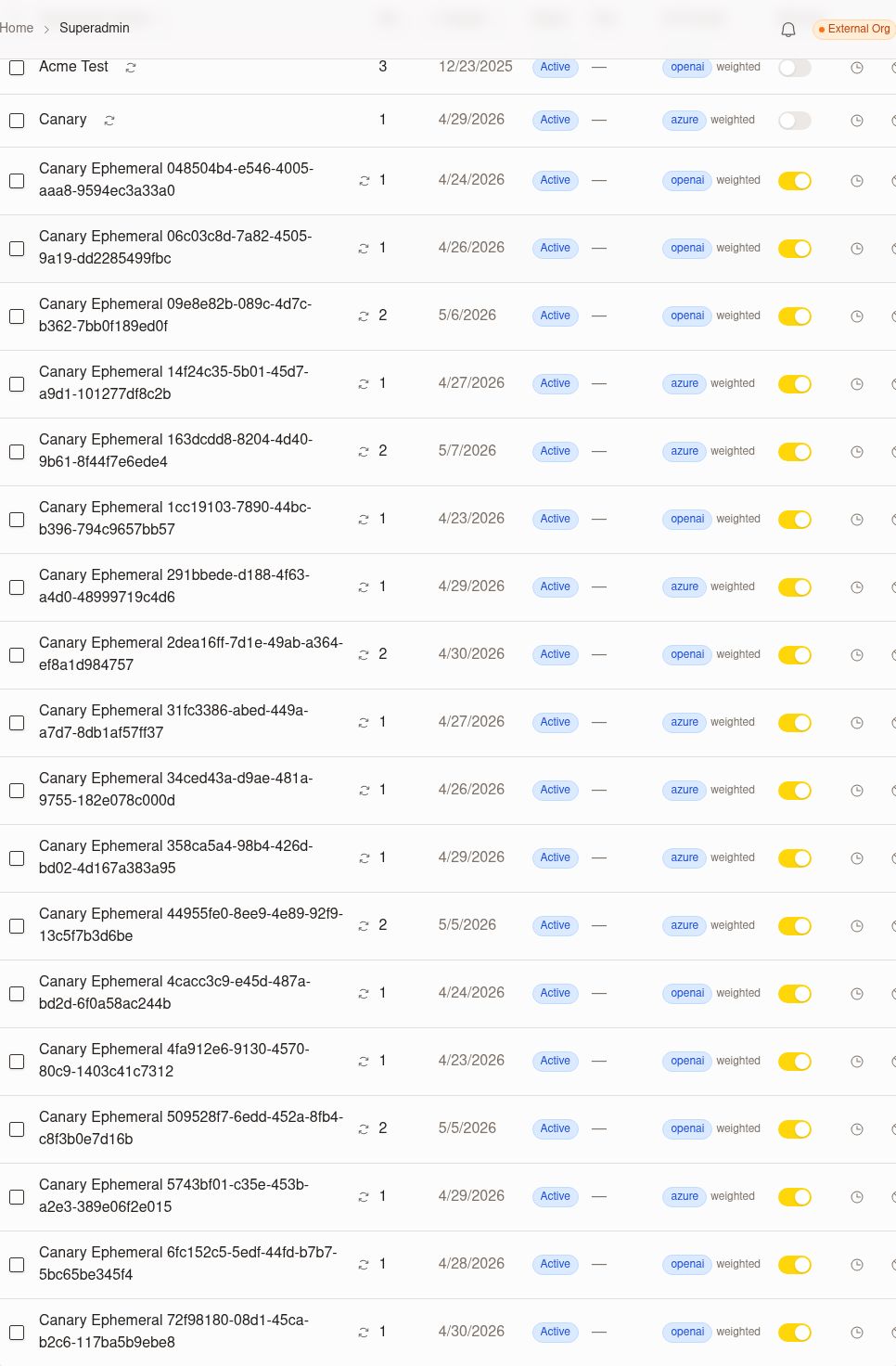
Review the organization row details before you take action:
| Detail | What you can review | How to use it |
|---|---|---|
| Membership controls | Whether you need to add or remove access for the organization | Update membership from the list when you need quick access changes without leaving the page |
| Org switching | The organization you want to enter for validation or troubleshooting | Switch into the org after you confirm the row matches the environment you need to inspect |
| AI provider | The provider currently assigned to the organization | Confirm which provider the org is using before you review AI behavior, token usage, or support issues |
| Routing source | How the provider was selected for that organization | Check whether the value comes from default settings, weighted routing, or an override so you understand what you are reviewing in the list |
Use the provider details in the organizations list when you need to:
- Compare AI provider assignments across organizations
- Confirm whether an organization is following default behavior or a more specific routing rule
- Validate that an override is applied before you troubleshoot AI output or cost
- Prioritize which organizations to inspect further in the Token usage dashboard
Treat this list view as a fast confirmation surface. If you need deeper context, switch into the organization or continue into related reporting after you identify the correct row.
Use Superadmin diagnostics to investigate workflow and agent activity with more detail per run and per tool. The diagnostics view now helps you move from a broad activity review into a deeper troubleshooting pass without leaving Superadmin.
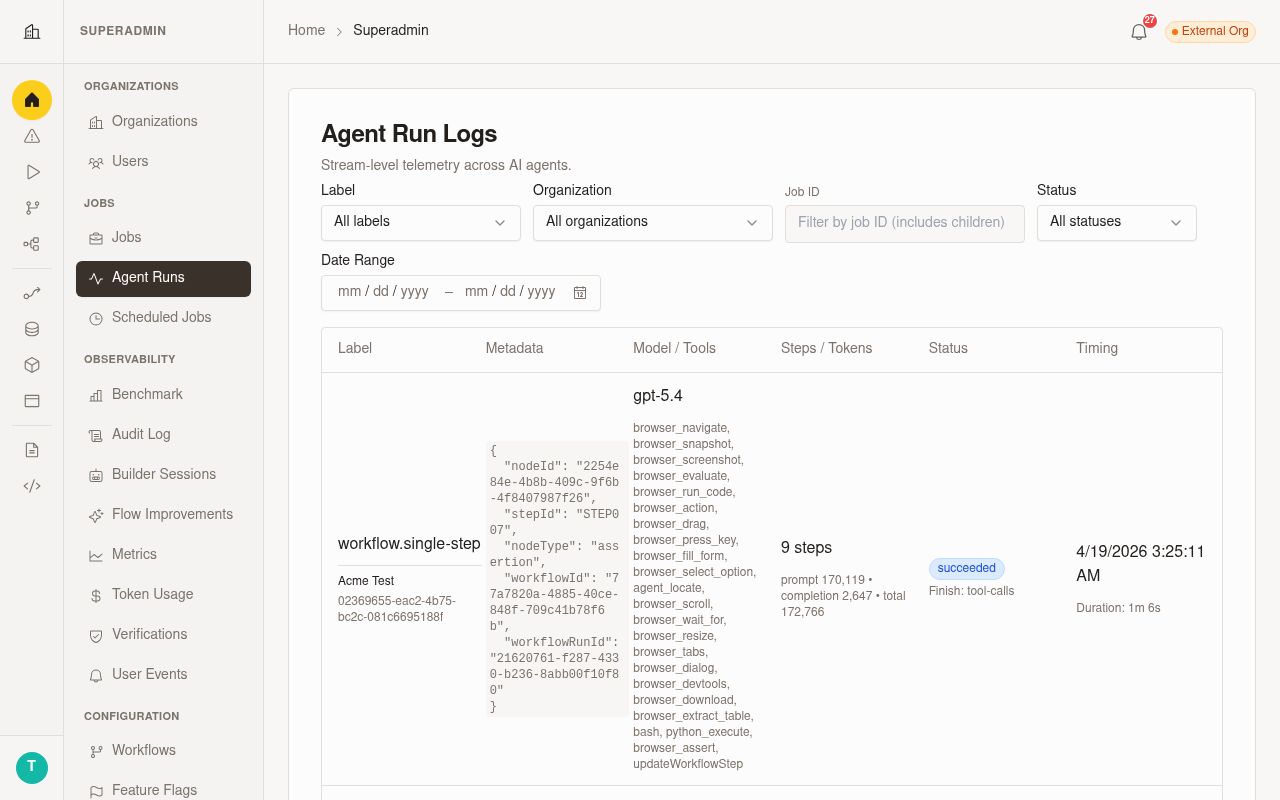
When you open diagnostics, review the following levels of detail:
| Level | What you can review | How to use it |
|---|---|---|
| Run details | Individual workflow or agent runs, including status and recent activity | Confirm which run needs attention before you investigate deeper |
| Tool details | Per-tool activity inside a selected run | Identify which tool completed, stalled, or failed during the run |
| Troubleshooting context | Run-by-run and tool-by-tool history in one place | Trace where an issue started and decide whether to retry, inspect configuration, or switch into the affected organization |
Use a simple troubleshooting flow:
- Open diagnostics from the dashboard.
- Find the workflow or agent run you want to inspect.
- Review the run details to confirm timing, status, and overall progression.
- Open the tool-level details for that run.
- Compare tool activity to identify where the run diverged from expectations.
- Continue into the affected organization if you need to validate settings or reproduce the issue.
Use deeper diagnostics when a high-level dashboard metric is not enough to explain a problem. Start with the run view to find the right event, then use the tool view to narrow the issue to a specific step.
Feature Flags management
Use Feature Flags to manage property-wide rollouts from a dedicated Superadmin area. This view gives you grouped flag administration, search, lifecycle metadata, and one-click toggles so you can change feature access quickly and review rollout state before you act.
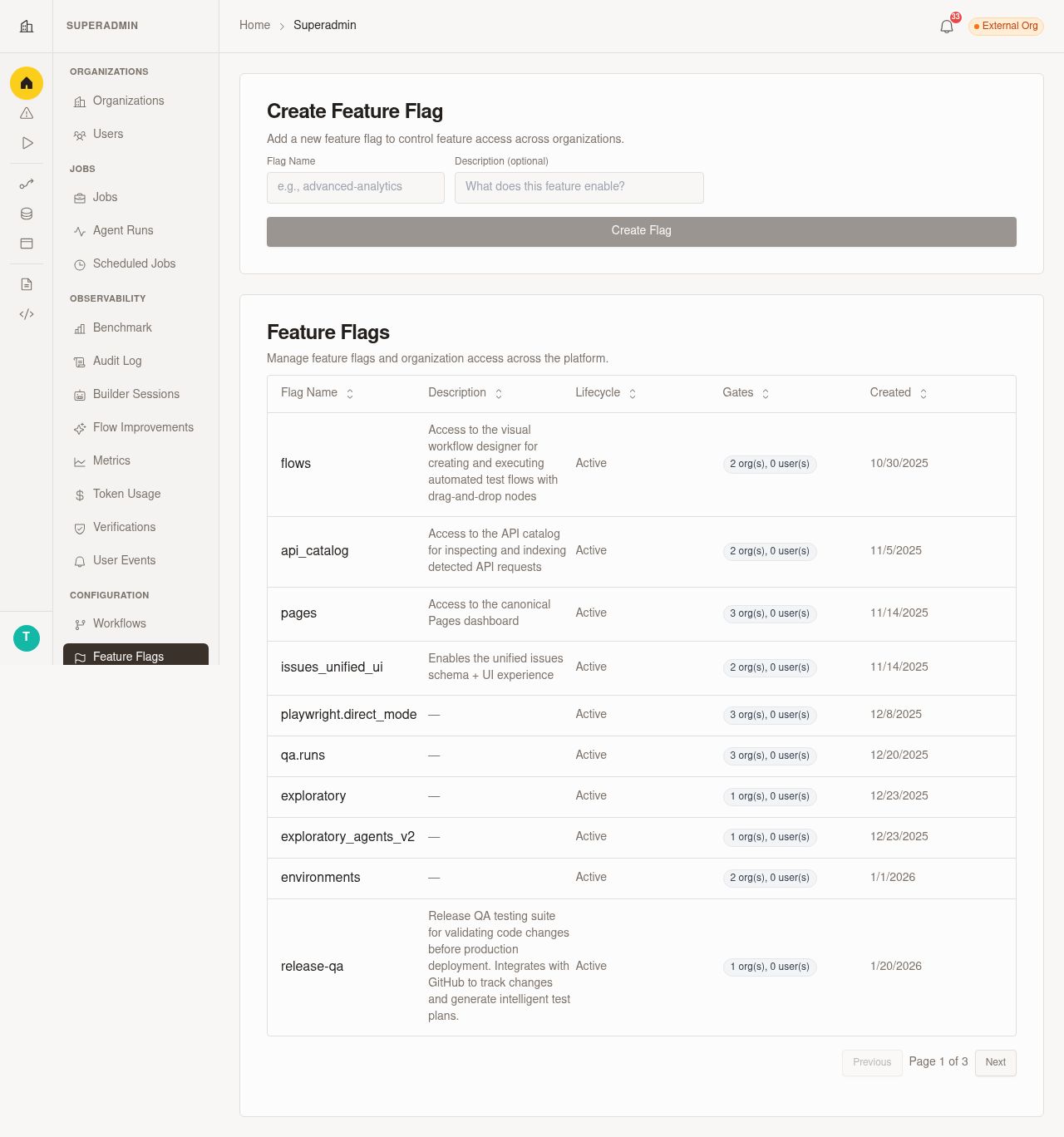
When you open Feature Flags, review the following areas:
| Area | What you can review | How to use it |
|---|---|---|
| Flag groups | Related flags organized together | Open the relevant group first to keep rollout work focused on the product area you are changing |
| Search | Matching flags by name | Use search to find a specific flag quickly when the list is large |
| Lifecycle metadata | Rollout context such as status and other administrative details shown with each flag | Review the metadata before changing a flag so you understand its current rollout stage |
| Gating controls | Organization-level and user-level targeting options | Limit a rollout to specific organizations or users when you need controlled access |
| Toggle actions | One-click enable and disable controls | Change flag state quickly, then verify the new state before you leave the page |
Use a simple rollout flow:
- Open Feature Flags from the dashboard or quick links.
- Use search or browse by group to find the flag you want.
- Review the lifecycle metadata for the flag.
- Set organization or user gating if you need a limited rollout.
- Toggle the flag on or off.
- Confirm the updated state and test in the affected organization if needed.
Use grouped administration when you are reviewing several related flags together. Use gating controls when you want to stage a rollout, validate a change with a smaller audience, or isolate access while you investigate an issue.
Token usage dashboard
Use the Token usage dashboard to monitor AI usage and cost from a dedicated Superadmin reporting surface. This dashboard helps you review token consumption trends, compare activity across organizations, and spot cost drivers before they become larger issues.
When you open the dashboard, review the following areas:
| Area | What you can review | How to use it |
|---|---|---|
| Filters | Date ranges and scoped views across organizations, agents, models, or job categories | Narrow the dashboard to the segment you want to review before you compare usage |
| Trends | Usage and cost patterns over time | Look for spikes, sustained increases, or unusual daily changes that need follow-up |
| Breakdowns | Token usage grouped by organization, agent, model, or job category | Identify where usage is concentrated so you know what to investigate next |
| Job category cost reporting | Cost distribution across workflows, ad hoc runs, crawls, and other job categories | Use the category-level view to see which kinds of work are driving spend |
| Daily reporting | Day-by-day usage visibility | Track short-term changes and confirm whether a spike is isolated or continuing |
Use a simple review flow:
- Open the Token usage dashboard from Superadmin.
- Set filters for the timeframe and scope you want to inspect.
- Review the trend view to identify unusual changes in usage or cost.
- Check the breakdowns to find which organizations, agents, models, or job categories are driving the change.
- Use the daily reporting view to confirm when the change started and whether it continues.
- Continue into the affected organization or related admin surface if you need to investigate further.
Use this dashboard when system-wide operational metrics are not enough to explain AI spend or activity. Start broad, then narrow the filters until you isolate the source of the change. For detailed field-by-field guidance, see the Token usage dashboard reference page.
06User events
Use User events to investigate property-wide event activity and turn recurring analysis into reusable reporting. This workspace now includes three tabs: Explore, Dashboards, and Slack.
Available surfaces
Use the User events tabs to move between investigation, persistent reporting, and Slack-related settings.
| Tab | Use it for | What you can expect |
|---|---|---|
| Explore | Investigating user events with ad hoc SQL queries | A query workspace for exploring event data and saving useful results for later |
| Dashboards | Building and reopening persistent event reports | A dedicated dashboard area where you create dashboards, add saved SQL cards, arrange layouts, and refresh data |
| Slack | Reviewing Slack-related settings tied to user events workflows | A separate settings area that stays distinct from the event investigation and reporting experience |
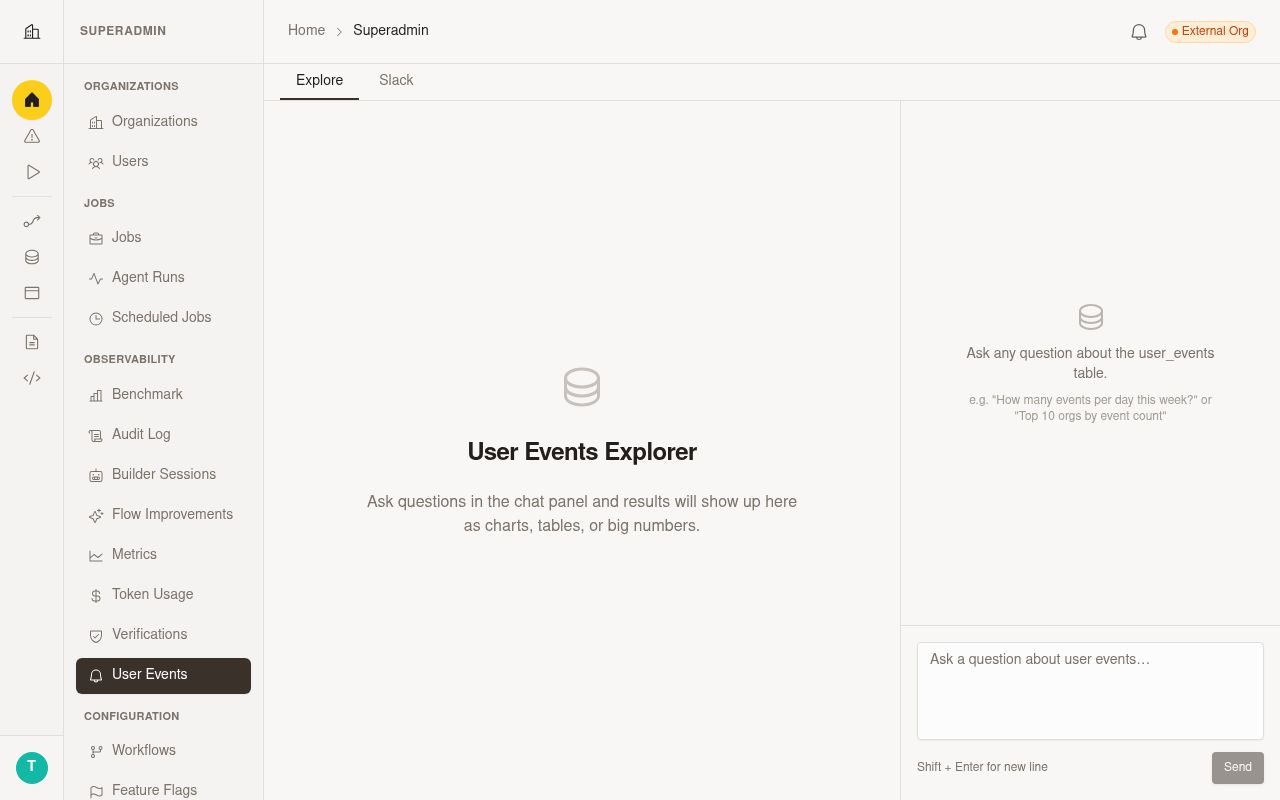
Explore and Dashboards workflow
Use Explore when you need to answer a question quickly. Save a useful query result into a new or existing dashboard when you want to keep that analysis available for repeated review.
Use Dashboards when you need a persistent reporting surface for SQL-based event analysis. Open an existing dashboard to review fresh data, adjust visualizations, or refine saved cards.
A typical reporting flow looks like this:
- Open User events from Superadmin.
- Go to Explore and run the SQL query you need.
- Save the query result as a card.
- Add the card to a new or existing dashboard.
- Open Dashboards to arrange the layout and review the saved report.
- Refresh the dashboard or edit a saved card when you need updated results.
Use this workflow when an ad hoc query becomes part of your regular reporting or operational review.
Dashboards access and capabilities
Use Dashboards as a Superadmin-only workspace for persistent user event reporting. This area is intended for users who need to monitor trends across the property, reopen saved analyses, and share a consistent dashboard layout with other Superadmins.
When you open Dashboards, you can work with the following capabilities:
| Capability | What you can do |
|---|---|
| Dashboard creation | Create a new dashboard for a reporting topic or investigation area |
| Saved SQL cards | Add cards created from query results in Explore |
| Layout editing | Arrange cards to build a useful dashboard view |
| Card refinement | Edit saved cards with SQL previews and visualization settings |
| Data refresh | Reopen dashboards and refresh results when you need current data |
For full dashboard instructions, see the User Events Dashboards reference page.
Current access and usage expectations
Treat User events as an admin investigation and reporting surface. Use Explore for ad hoc analysis, use Dashboards for persistent SQL-based reporting, and use Slack only for Slack-related settings.
If you need to validate a finding inside a specific organization, switch into that organization after you finish the property-wide review.
07Operational visibility
Use Superadmin to review AI configuration visibility before you begin deeper investigation. The organizations list now shows both the active AI provider and a routing source label, which gives you a faster way to understand org-level AI behavior from a property-wide view.
Use this visibility to answer common questions quickly:
| Question | What to check in Superadmin | What to do next |
|---|---|---|
| Which provider is this organization using? | Review the AI provider value in the organizations list | Switch into the organization or open the Token usage dashboard if you need more detail |
| Why is this provider assigned to this organization? | Review the routing source shown with the provider value | Confirm whether the org is using default settings, weighted routing, or an override |
| Which org-level AI settings matter most before troubleshooting? | Review the routing source and confirm whether the org follows preferred provider and model-tier defaults or a more specific override | Continue into the organization if you need to inspect the exact AI configuration in context |
| Why do two organizations use different providers? | Compare the provider and routing source across rows | Investigate only the organizations with unexpected routing |
| Which organizations need follow-up after an AI routing change? | Scan the list for unexpected provider or source combinations | Use search, sorting, and targeted review to narrow the set before you act |
| Which job types are driving AI cost increases? | Open the Token usage dashboard and review the job category cost breakdown | Narrow by timeframe and scope, then investigate the workflows or orgs behind the increase |
Treat the organizations table as your first review surface for AI routing visibility. Use it to confirm what is active now, then continue into organization settings, diagnostics, or reporting only when you need more detail.
08AI and model configuration
Use Superadmin to understand how provider selection appears in admin surfaces. The organizations list shows the current provider and a routing source label so you can tell whether the org is using a default assignment, weighted routing, or an explicit override.
Review these routing source types when you interpret the organizations list:
| Routing source | What it means in Superadmin | How to interpret it |
|---|---|---|
| Default settings | The organization follows the standard provider selection shown for the property | Treat this as the expected baseline when no more specific routing applies |
| Weighted routing | The organization is being directed through routing rules rather than a single fixed default | Expect provider assignment to reflect routing behavior configured for broader traffic handling |
| Override | The organization has a more specific provider selection than the general configuration | Treat this as an intentional exception and verify it before you make broad AI-related changes |
Superadmin visibility is also useful when your property uses organization-level AI configuration with both a preferred provider and model tiers. Use the organizations list to confirm whether an org appears to follow the expected routing path before you switch into that org to review the full AI settings.
Use this review sequence when you investigate AI configuration:
- Open Organizations in Superadmin.
- Find the organization you want to review.
- Check the AI provider and routing source values.
- Decide whether the org appears to follow default behavior, weighted routing, or an override.
- Switch into the organization if you need to confirm the exact preferred provider or model-tier configuration.
- Open the Token usage dashboard if you also need to compare AI usage or cost after the configuration review.
AI routing is also more flexible across organizations, so the organizations list is the best place to confirm the current effective provider and routing source before you investigate further. Routing behavior is validated automatically in the product, which helps keep provider assignments consistent as you review them in Superadmin.
09Best practices
- Start from the dashboard to get current context before making broad changes.
- Use search and sorting to reduce mistakes in large organization lists.
- Prefer single-organization changes when you are testing or investigating.
- Use bulk actions only after you confirm the exact selection.
- Switch into an organization when you need to verify user-visible behavior.
- Use Feature Flags gating controls for staged rollouts when you do not want to expose a change to every organization or user at once.
- Review lifecycle metadata before you toggle a flag so you understand the rollout state.
- Use User events Explore for ad hoc event investigations and SQL analysis.
- Save useful query results into Dashboards when you need reusable reporting.
- Reopen and refresh Dashboards regularly if you use them for ongoing operational review.
- Use the Slack tab only for Slack-related settings, not for event exploration or dashboard reporting.
- Treat User events as an admin-only surface for operational review and troubleshooting.
- Use the Token usage dashboard to review AI usage and cost trends before they become larger operational issues.
- Check job category cost breakdowns in the Token usage dashboard when total AI spend changes unexpectedly.
- Confirm the AI provider and routing source in the organizations list before you troubleshoot AI behavior or compare organizations.
- Use routing source labels to tell the difference between default behavior, weighted routing, and explicit exceptions.
- Treat Override provider selections as deliberate exceptions and verify them before you make broader AI configuration changes.
- Use the organizations list as your first check after AI routing changes so you can confirm the effective provider quickly.
- Review organization-level AI routing context before you investigate model-tier behavior or provider-related spend.
- Pause before deletion and complete every confirmation step carefully.