Product Board
export const meta = { title: 'Product Board', description: 'Track product ideas from intake to launch with a dedicated board, lifecycle stages, and item management controls.', tags: ['reference'], };
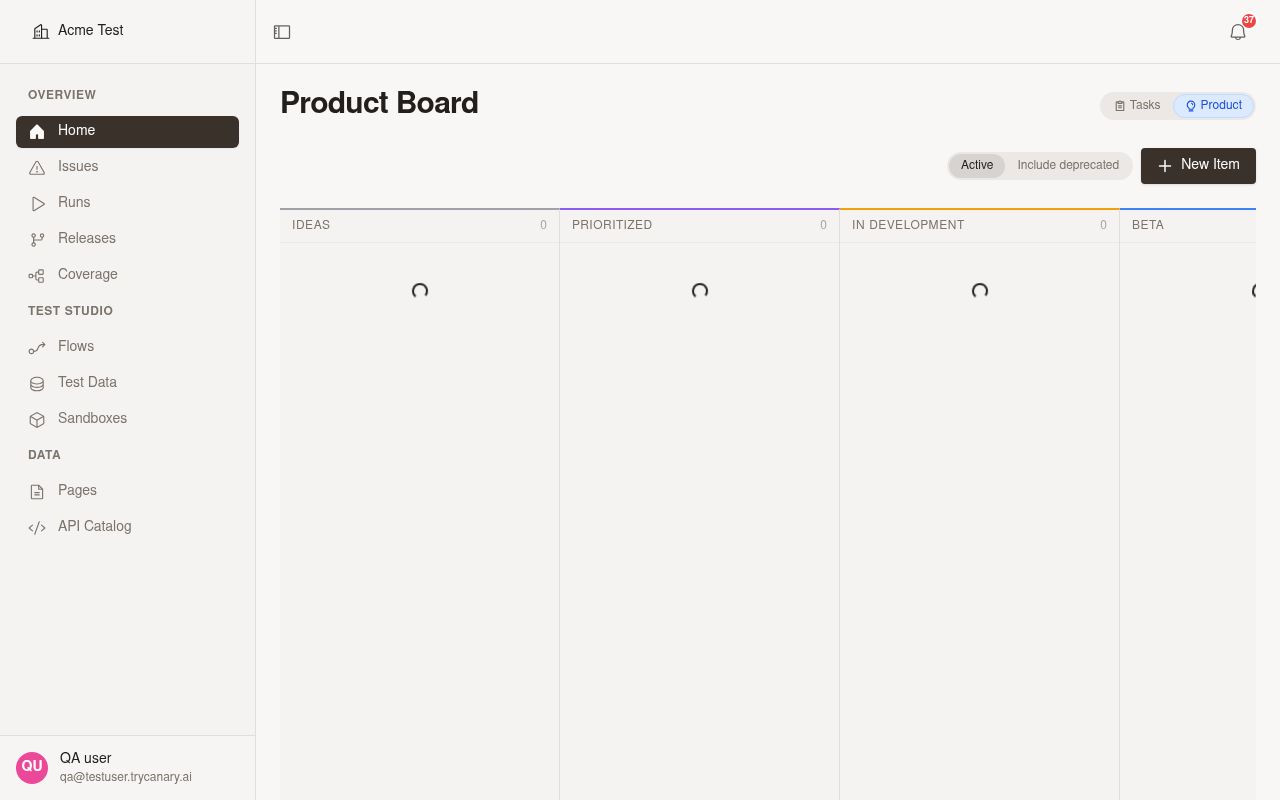
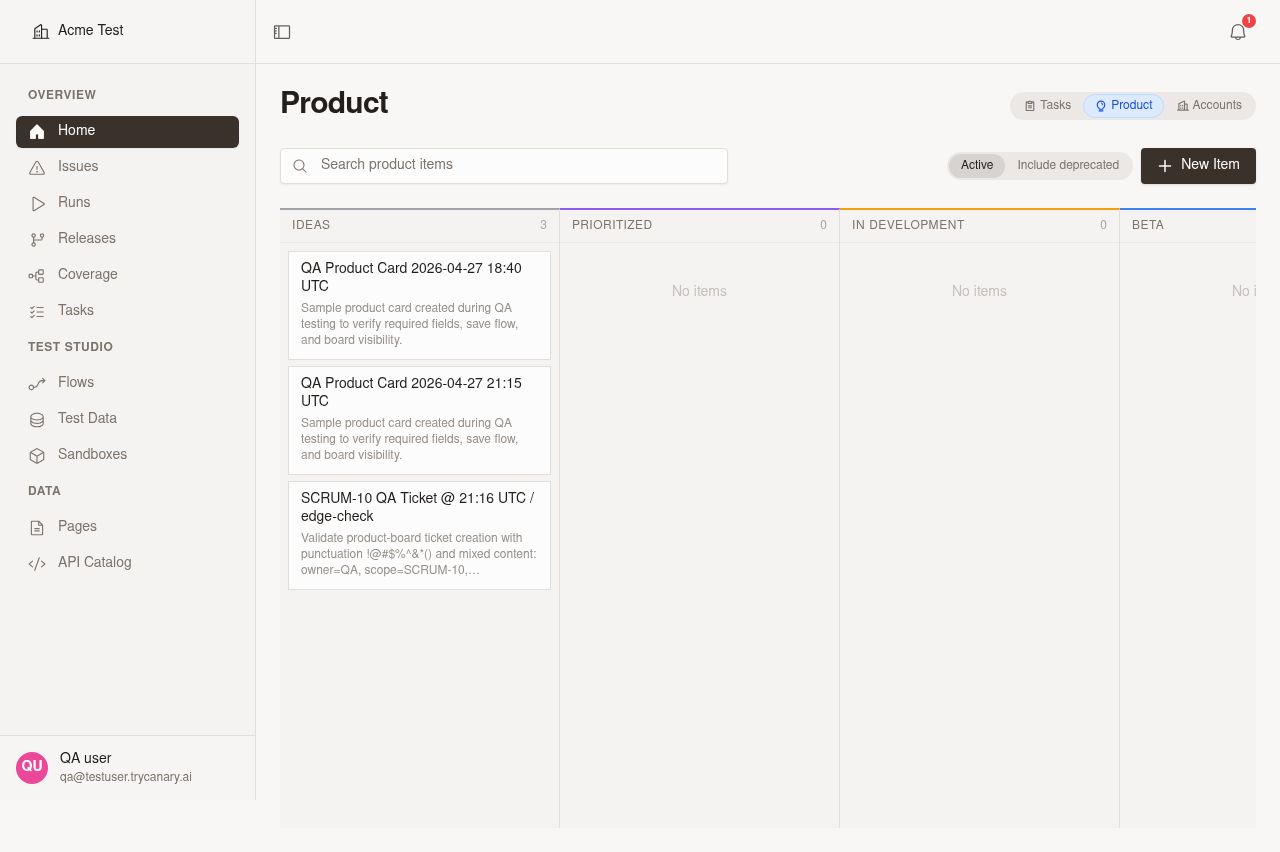
Use Product Board to track product work from early ideas to launched features in a single planning surface. You can create items, update details, drag items across lifecycle stages, search for specific items, and manage deprecated work without leaving the board.
01When to use Product Board
Use Product Board when you need a shared view of product work across the full feature lifecycle. It works well when you want to capture new ideas, prioritize what matters next, and keep launch status visible to your team.
Product Board is especially useful when you need to:
- Organize feature requests and internal ideas in one place
- Review what is prioritized versus still under consideration
- Move work forward with a drag-and-drop workflow
- Track launch progress from development through beta and general availability
- Find specific items quickly without manually scanning every column
- Keep deprecated work visible without mixing it into active planning
02Lifecycle stages
Product Board organizes items into fixed lifecycle stages. Each stage represents the current status of a product item and helps your team understand what should happen next.
| Stage | Use it for |
|---|---|
| Ideas | New requests, rough concepts, and items still being explored |
| Prioritized | Items you plan to work on next or actively sequence into upcoming work |
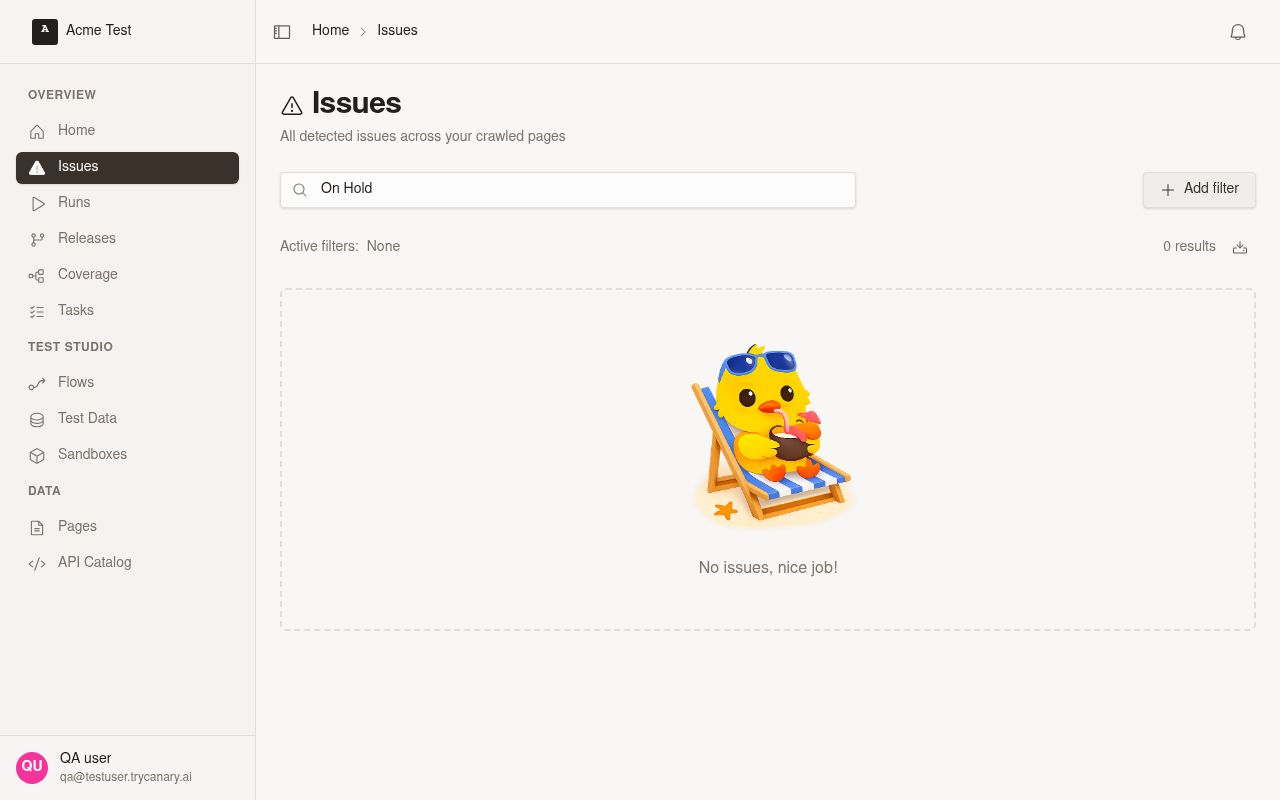
| On Hold | Items you want to pause without deprecating or removing from active roadmap planning |
| In Development | Items currently being designed, built, or validated by the team |
| Beta | Items available for limited rollout, testing, or controlled feedback |
| GA | Items that are generally available and considered launched |
| Deprecated | Items you no longer support, no longer plan to pursue, or have retired |
Ideas
Use Ideas for early-stage concepts that still need review. Keep items here while you collect context, refine the problem, or decide whether the work belongs on the roadmap.
Prioritized
Move items to Prioritized when you are ready to give them planning attention. This stage helps your team separate interesting ideas from work that is closer to execution.
On Hold
Move items to On Hold when you want to pause work temporarily without retiring it. Use this stage for items that still matter but need to wait for staffing, dependencies, timing, or a shift in roadmap focus.
Unlike Deprecated, On Hold keeps the item in active planning so you can resume it later without restoring it from a retired state.
In Development
Use In Development for items that are actively moving forward. Place items here once the team starts implementation work or formal delivery.
Beta
Move items to Beta when the feature is available to a limited audience. Use this stage while you gather feedback, validate behavior, and prepare for a broader launch.
GA
Use GA for items that are fully launched and available as part of the standard product experience. This stage gives you a clear record of completed releases.
Deprecated
Use Deprecated for items that are retired or no longer planned. Deprecated items remain available for reference, and you can restore them later if priorities change.
03Manage product items
Product Board now uses the same card experience as other boards. Open a product item in the side panel to review details, make edits, change stages, delete the item, and add comments.
You can manage product items directly from the board. Create new entries, update their details, change stages, search for specific items, control whether deprecated work stays hidden or visible, and discuss roadmap items in context.
Create an item
Create a product item when you want to capture a new feature, request, or initiative.
- Open Boards and select Product Board.
- Click New item.
- Enter a title for the item.
- Add a description if you want to capture more context.
- Select a stage if you want to place the item directly into the right part of the lifecycle.
- Set a Priority from
P0,P1,P2, orP3if you want to signal urgency. - Link the item to a customer or organization if you want to track who the work matters to.
- Save the item.
Start with a clear, specific title so the board stays easy to scan. Add the description early if the item needs problem statements, user impact, or launch notes. Use priority and customer or organization links to make triage easier as the board grows.
Edit title and description
Edit an item from the board card side panel when you need to refine the name or add more context.
- Open Boards and select Product Board.
- Click an item card.
- Update the Title or Description in the side panel.
- Save your changes.
Use the side panel to keep item information current as scope or status changes.
Set priority and customer or organization links
Use item fields in the side panel to make roadmap triage more visible. Priority helps you communicate urgency, and customer or organization links help you capture who requested or depends on the work.
- Open Boards and select Product Board.
- Click an item card to open the side panel.
- Set Priority to
P0,P1,P2, orP3. - Add or update the linked customer or organization.
- Save your changes.
Use priorities consistently across the board so sorting and review stay meaningful. Link customers or organizations when you want roadmap decisions to stay tied to real demand.
Add and review comments
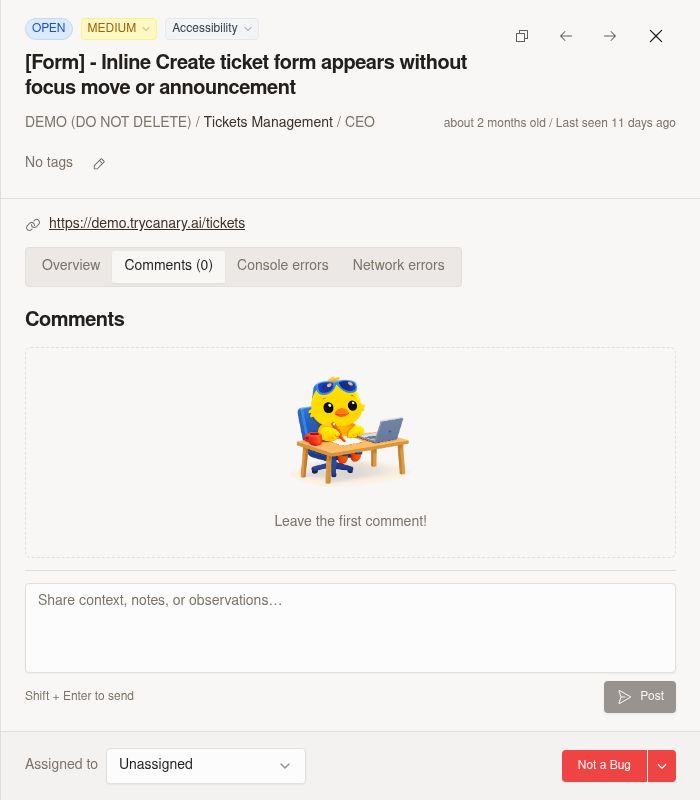
Use comments to discuss roadmap items directly from the product item drawer. Comments help your team capture feedback, ask questions, and keep collaboration tied to the item instead of separate chat threads.
- Open Boards and select Product Board.
- Click an item card to open the drawer.
- Find the Comments section in the drawer.
- Enter your comment.
- Save or post the comment.
Reopen the same item any time to review the full comment thread and follow the latest discussion before you update the item.
Move items across stages
Move items across stages to reflect their current status.
- Open Boards and select Product Board.
- Find the item you want to update.
- Do either of the following:
- Drag the item to the correct stage column.
- Open the item card and update its stage from the side panel.
- Save the change if prompted.
Use stage changes consistently so the board stays reliable for planning and status reviews. Move items to On Hold when work is paused but still belongs in active roadmap review. Use Deprecated only when you no longer plan to pursue or support the item.
Deprecate, restore, and permanently delete items
Use item lifecycle actions to manage work that is no longer active.
- Deprecate an item when you want to retire it without losing the record
- Restore an item when you want to bring deprecated work back into active planning
- Permanently delete an item when you no longer need it in the board at all
Open the item card to access these actions from the side panel. Deprecating is the safest option when you want to preserve historical context. Permanently delete items only when you are sure you no longer need the record.
04Board controls
Product Board includes controls that help you focus on active planning while still keeping historical work accessible.
Active vs include deprecated
Use the board view controls to switch between active work and a broader view that includes deprecated items.
| View | What it shows |
|---|---|
| Active | Items in active lifecycle stages, including On Hold, without deprecated work mixed in |
| Include deprecated | Active items plus items in Deprecated |
Use Active for day-to-day planning and standups. Turn on Include deprecated when you need to review retired work or restore an item.
Search
Use search from the board header to find a specific product item without manually scanning each stage column.
- Open Boards and select Product Board.
- Click the search field in the board header.
- Enter part of the item title.
- Review the filtered board results.
- Clear the search when you want to return to the full board.
Use search when the board has many items or when you already know part of the item name.
Board organization and filtering
Use stages, priority, and linked customers or organizations together to keep the board easy to review.
| Field or control | How to use it |
|---|---|
| Stage | Group work by lifecycle status, including pausing items in On Hold without retiring them |
| Priority | Mark urgency with P0 through P3 so important work stands out during triage |
| Customer or Organization link | Show who the item matters to so demand stays visible during planning |
| Search | Narrow the board when you need to find a specific item quickly |
| Include deprecated | Expand the board when you need to review retired work |
Use Priority to separate urgent roadmap work from lower-priority ideas. Use customer or organization links when you want backlog reviews to reflect specific accounts, requests, or business impact.
Item detail drawer
Open a product item to work with it in the shared card side panel. Use the drawer to review details, edit the title or description, change the stage, delete the item, and read or add comments.
Comments appear in the product item drawer alongside the rest of the item details, so you can review discussion and update the item from the same place. Use this view when you need both the current item state and the collaboration history.
This view lets you make quick updates while keeping the board visible.
05Finding product items
Use board search when you need to jump to a specific item quickly. Search works well when you know part of the title but do not want to scan multiple columns.
Search from the board header and type part of the item name to narrow the visible cards. Combine search with the deprecated-item view control when you need to check whether an item is active or already deprecated.
If you do not see the item you expect, clear the search, confirm the title spelling, and turn on Include deprecated to expand the results.
06Best practices
- Keep item titles short and outcome-focused so columns stay easy to scan
- Use descriptions to capture decision-making context, not just a repeat of the title
- Use comments to capture discussion, feedback, and open questions directly on the item
- Review existing comments before changing scope or stage so decisions stay grounded in context
- Move items as soon as their status changes so the board reflects current reality
- Reserve Prioritized for work you genuinely expect to sequence next
- Use On Hold for paused work you still expect to revisit
- Use Priority levels consistently so roadmap reviews and triage stay clear
- Link customers or organizations when specific demand should influence prioritization
- Use Beta only when an item is available for limited rollout or structured feedback
- Deprecate items instead of deleting them when you may need historical reference later
- Review deprecated items periodically and restore or delete them intentionally