Workflow Notification Steps
export const meta = { title: 'Workflow Notification steps', description: 'Send outbound emails directly from a workflow with Notification steps, including message content, recipients, and file attachments.', tags: ['reference'], };
Notification steps let you send outbound emails directly from a workflow. Use them to notify teammates, share run results, or deliver files as part of an automated flow.
01When to use Notification steps
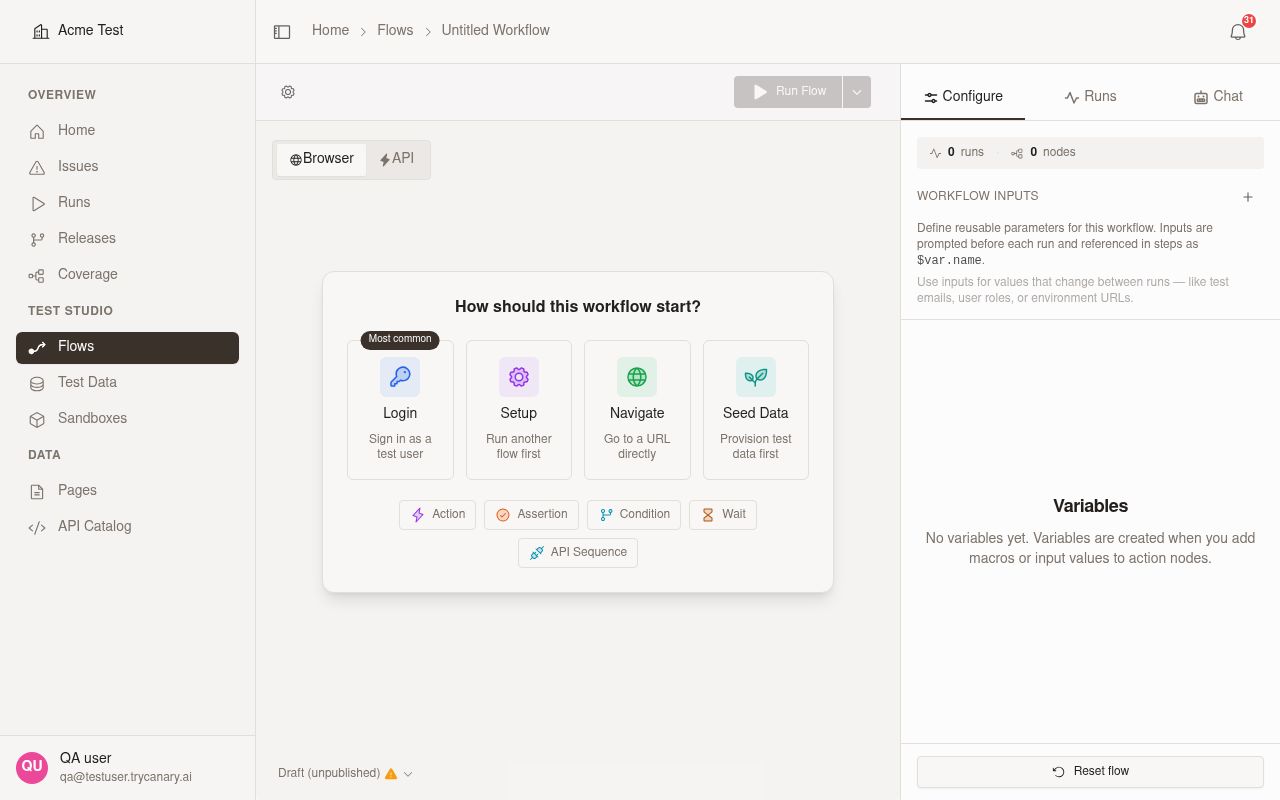
Use a Notification step when your workflow needs to send an email as part of the run. Add the step directly in the Flow Designer from the quick-create menu or the edge insert menu where you want the message to be sent.
Common scenarios include:
- Sending a summary email after a workflow finishes
- Alerting a team when a run reaches an important checkpoint
- Sharing output files or artifacts generated during the flow
- Notifying stakeholders when a workflow detects an issue that needs review
- Sending different emails to different audiences at different points in the same flow
02How Notification steps work
A Notification step sends an outbound email when the workflow reaches that node during a run. Add the Notification node in the Flow Designer, configure the recipients, subject, body, and optional attachments, and then save the flow.
The step runs in sequence with the rest of your workflow. If your flow reaches the Notification node, Canary sends the email using the configuration saved on that step.
Recipients and message content
Configure each Notification step with the people who should receive the message and the content you want to send. Use the step editor to enter one or more recipients, a subject line, and the email body.
You can parameterize Recipients, Subject, and Body with reusable variables. Use variables when you want the same Notification step to adapt to the current run, the selected branch of the flow, or values produced by earlier steps.
Use variables to:
- Route a message to different recipients based on the workflow path
- Reuse the same subject pattern across multiple Notification steps
- Build message bodies that include run-specific details, results, or next actions
- Chain values from earlier steps into later notifications in multi-step flows
Canary resolves variables when the run reaches the Notification step, so each email can use run-specific values without duplicating the step configuration.
Write the Subject and Body fields directly in the step configuration. Keep the subject line focused on the outcome or action, then use the message body to provide the context, status, or next step recipients need.
Include clear, specific message text so recipients understand why they received the email and what action to take next. When you use multiple Notification steps in the same flow, reuse variables where possible so each step stays consistent while still reflecting the current state of the run.
Attachments
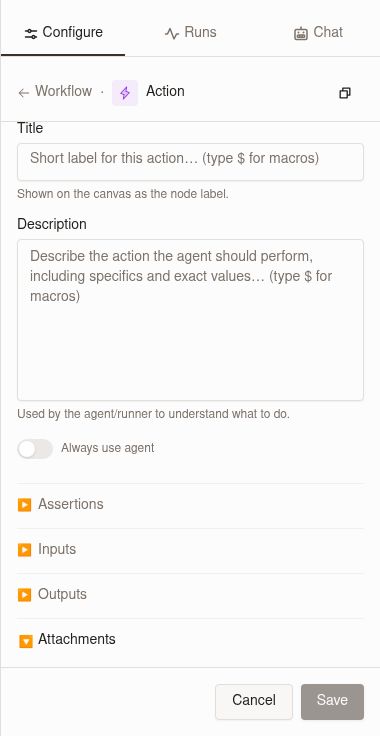
Notification steps support attachments. Add files in the step editor when you configure the Notification node.
You can also use macros in attachment filenames. Canary resolves the filename for the current run when it sends the email, so recipients see attachment names that match that run's values.
Attachments are sent only if the run reaches that Notification step and the files are available for that run. If the step is skipped, Canary does not send the email or its attachments.
Attach only the files recipients need to review or act on. If your workflow produces multiple outputs, send the most relevant files and keep the message body focused on what the recipient should review.
Execution behavior during runs
A Notification step executes only when a run reaches that point in the flow. If the step is skipped because of branching logic, an earlier failure, or another path through the workflow, no email is sent.
Each run resolves the Recipients, Subject, Body, and any attachment filenames from that Notification step when the run reaches it. This means the same saved step can send different recipient values, message text, or attachment names from one run to the next.
Variable-driven notifications work especially well in multi-step flows. For example, you can define values earlier in the workflow, then reference those values in a later Notification step to send the right message to the right audience at the right time.
Notification step outputs remain available after wait and resume boundaries in long-running workflows. If your flow pauses and later resumes, you can continue to reference notification outputs and other already-resolved values in downstream steps more reliably.
Attachments are included from that step's configuration for the current run when they are available to send. If you update the step later, future runs use the new configuration.
Place Notification steps carefully in relation to assertions, branching logic, and other workflow steps so emails are sent at the right moment. Each Notification step sends the email defined on that node at the time the run executes. If your workflow includes multiple Notification steps, each one sends independently when the run reaches it.
03Adding a Notification step to a flow
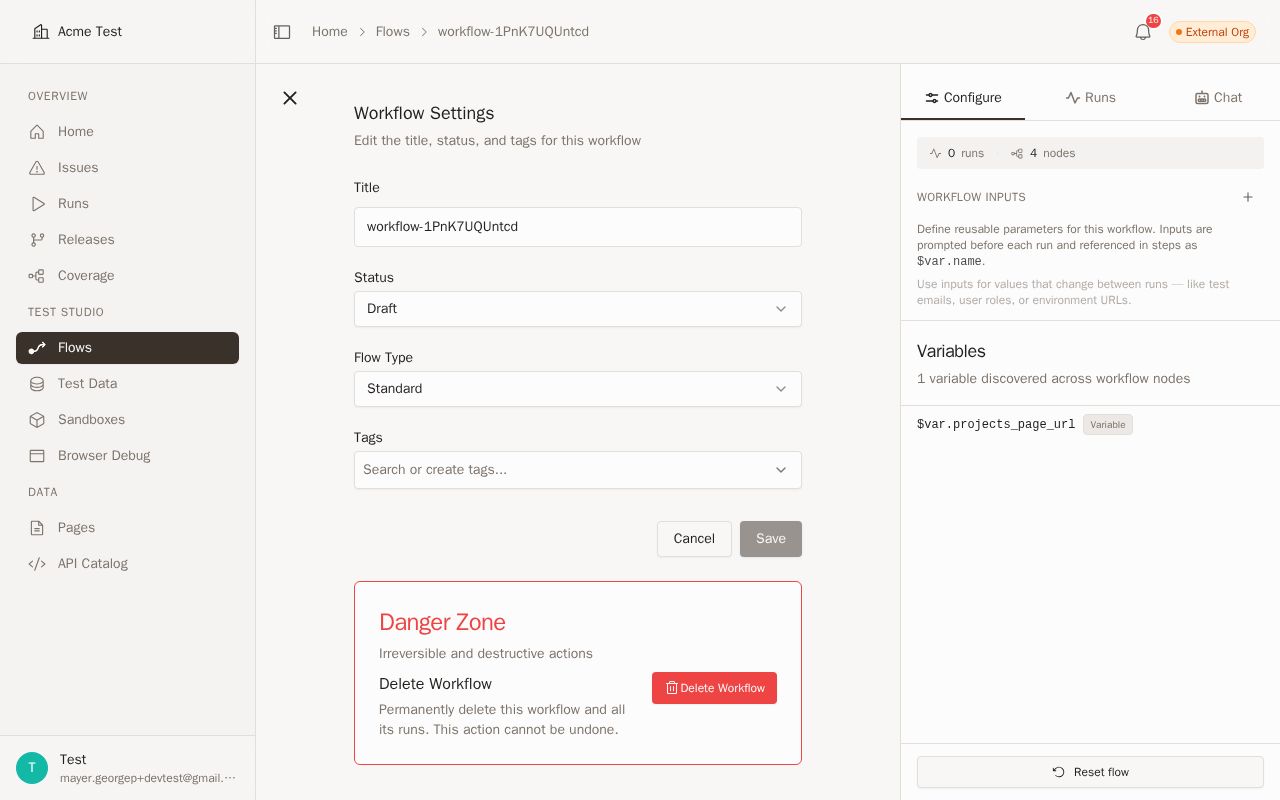
Add a Notification step from the Flow Designer, then complete the required email configuration before saving the flow. You can now add the step from the quick-create menu or from the edge insert menu between existing steps. The step editor includes separate fields for recipients, subject, body, and attachments so you can control exactly what the workflow sends.
Required configuration
Configure the following before you use a Notification step:
| Field | Description |
|---|---|
| Recipients | Enter one or more email addresses that should receive the notification. You can use reusable variables to parameterize recipient values for different runs or branches. |
| Subject | Add the email subject line recipients see in their inbox. You can use reusable variables to keep subject patterns consistent across steps while still reflecting run-specific values. |
| Body | Write the email message you want to send. You can use reusable variables to insert dynamic content from the current run or earlier workflow steps. |
| Attachments | Optionally include files to send with the message when they are available during the run. Attachment filenames can use macros. |
To add the step:
- Open your workflow in the Flow Designer.
- Add a Notification node from the quick-create menu or the edge insert menu where you want the email to be sent.
- Enter the recipients for the email.
- Add the subject line in Subject.
- Write the message content in Body.
- Add any files you want to include in Attachments.
- Save the workflow.
If you are building a new path, use the quick-create menu to add Notification as the next step. If you need to insert an email into an existing path, use the edge insert menu between two steps.
Common use cases
Notification steps fit well in workflows that need a clear communication handoff. You can use them in several ways:
- Send a completion email after a successful run
- Notify an operations or QA team when a flow detects a problem
- Deliver files produced during a workflow to a reviewer
- Send milestone updates in longer workflows with multiple stages
04Best practices
- Keep each Notification step focused on a single purpose.
- Write short, direct subject lines and message bodies.
- Use reusable variables in Recipients, Subject, and Body when the same step needs to adapt across runs or branches.
- Define variables before the Notification step that uses them so later steps receive the values you expect.
- Reuse the same variable patterns across multiple Notification steps to keep multi-step flows easier to maintain.
- Confirm that any variable-based recipient values, message content, and attachment names produce the email you expect for each run.
- Send notifications only at meaningful points in the flow to avoid unnecessary email noise.
- Place steps after the workflow state you want to communicate, not before it.
- Attach only the files recipients need to review or act on.
- Use separate Notification steps for different audiences when the message or attachments differ.
05Outputs and downstream variables
Notification steps can produce outputs that you reference in later steps. Use those outputs the same way you use other workflow values when you build downstream variables, conditions, or message content.
Variable validation recognizes notification-step outputs more reliably. If you reference a Notification step output in a later step, Canary now validates that reference correctly more often during workflow setup and run evaluation.
When you build downstream logic, define and reference notification outputs consistently. If a later step depends on a notification output, keep that dependency after the Notification step in the flow so the value is available when the step runs.
06Long-running workflows
Notification outputs remain available more reliably when a workflow pauses and later resumes. This matters in flows that include waits, approvals, scheduled delays, or other boundaries where a run continues in multiple segments.
If you send a notification before a wait, you can continue to reference that step's outputs after the run resumes. Use this pattern when you need to carry notification-derived values into later branches, follow-up messages, or post-wait checks.
When you design longer workflows, place Notification steps before the downstream logic that needs their outputs and keep your variable references explicit. This makes the flow easier to reason about when a run spans a longer period.
07Troubleshooting
If a downstream step cannot use a notification value, check the step order first. Make sure the workflow reaches the Notification step before the step that references its outputs.
If your workflow includes waits or other long pauses, confirm that the output you need comes from a Notification step that has already run. Notification outputs now remain available more reliably after resume boundaries, so you can keep using them in later steps.
If variable validation flags a notification output unexpectedly, reselect or re-enter the variable reference in the step editor and save the workflow again. If the workflow path and step order are correct, the reference should validate correctly.
If a notification is not sent, review branching, failures, and skipped paths. A Notification step sends email only when the run reaches that node.