Knowledge Graph
export const meta = { title: 'Knowledge Graph', description: 'Use the Knowledge Graph workspace to discover concepts in your app, inspect what Canary has learned, and manage graph discovery over time.', tags: ['reference'], };
The Knowledge Graph is a full-screen workspace where you explore the concepts Canary discovers across your app. Use it to inspect entities and relationships, ask questions from the persistent Ask rail, and control how discovery runs over time.
01When to use the Knowledge Graph
Use the Knowledge Graph when you want to understand how Canary models your product and customer-facing workflows. It is especially useful when you need to review discovered concepts, spot gaps in exploration, or keep discovery running as your app changes.
Common use cases include:
- Review the entities, objects, and concepts Canary has discovered
- Inspect a specific concept in more detail before using it in other workflows
- Ask questions about the graph while keeping the canvas in view
- Give workflow agents stronger pre-run context about your app before execution starts
- Choose which credentials Canary should use for discovery
- Schedule recurring exploration so the graph stays current
- Pause, resume, or reset discovery when your environment changes
02Core concepts
The Knowledge Graph combines graph exploration, concept inspection, and discovery management in one workspace. The main experience centers on a graph canvas, an Explore view for browsing discovered concepts, and controls for managing how discovery runs.
Graph discovery and concepts
Graph discovery is the process Canary uses to explore your app and identify meaningful concepts. A concept can represent something Canary has learned about your product, such as a resource, workflow, or other important object that helps describe how your app works.
Discovery depends on the credentials you choose. Canary uses those credentials to explore the parts of your app it can access, so the quality and breadth of the graph depends on the environments and permissions you provide.
Explore view and concept drawers
Use Explore when you want a list-based way to browse everything Canary has found. You can search and filter the discovered concepts, then open a concept drawer to inspect details without losing your place in the workspace.
Concept drawers help you quickly review what Canary has learned about a concept before continuing to explore the graph. Use them to compare concepts, confirm that discovery found the right objects, and move from a list view into deeper inspection.
The Explore view now emphasizes product features and the relationships between them, so you can scan the graph in more user-facing terms instead of sorting through raw implementation detail. When linked repositories or other code sources are available, Canary can use that analysis to enrich how it understands features, workflows, and related concepts across your app.
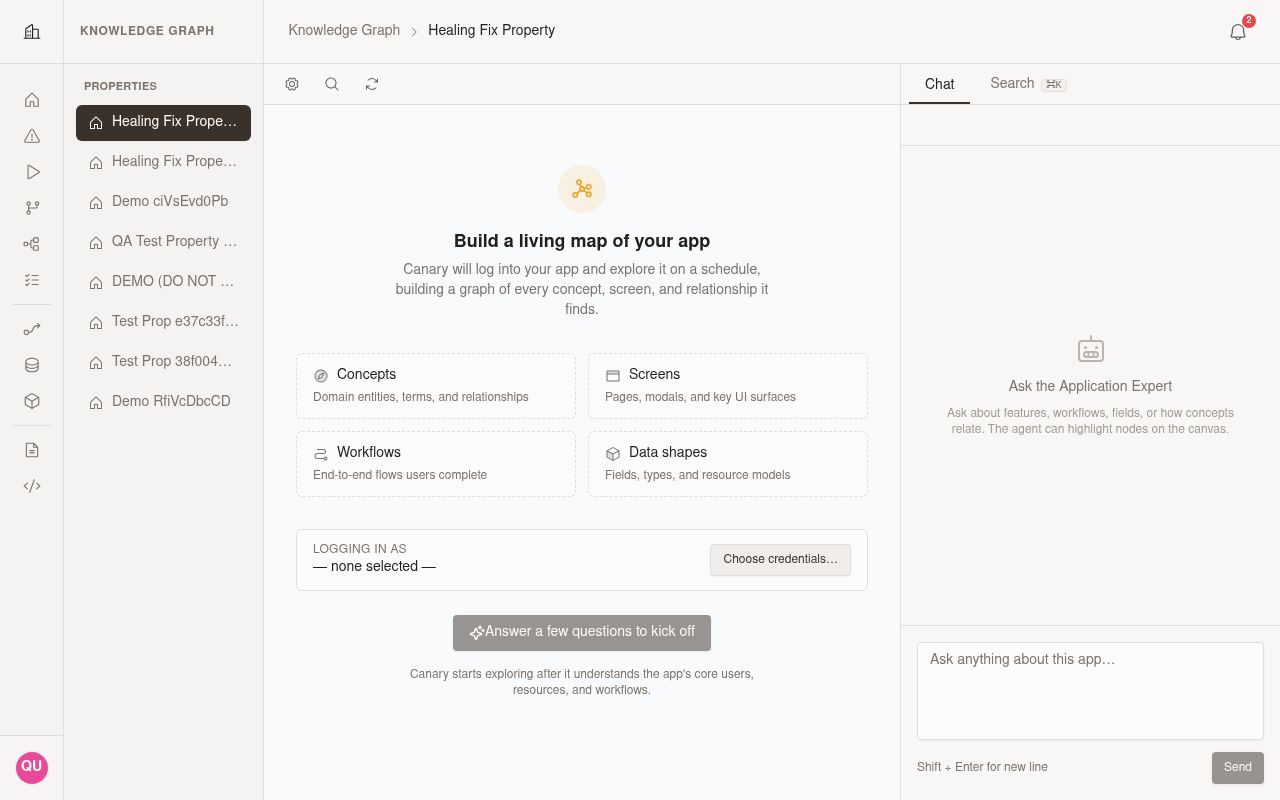
Ask rail and graph workspace
The Knowledge Graph keeps the Ask rail available alongside the graph workspace. This lets you ask questions while still navigating the canvas and reviewing discovered concepts.
Use the graph canvas when you want a visual view of relationships, and use the Ask rail when you want faster guidance or clarification. Together, they give you a visual and conversational way to inspect the same workspace.
03Set up and manage discovery
Use the workspace controls to choose credentials, start exploration, and manage ongoing discovery. These actions help you control what Canary can explore and when it refreshes the graph.
Choose credentials
Choose one or more credentials from Settings before you start discovery or when you need to expand coverage later. The settings workspace keeps credential selection alongside exploration status, scheduling, and graph controls, so you can manage everything from one place.
Use this approach when selecting credentials:
| Option | Use it for |
|---|---|
| Single credential | Explore one app environment or one connected surface |
| Multiple credentials | Expand discovery across more than one accessible system or environment |
| Updated credential selection | Refresh graph coverage after access changes |
If the graph looks incomplete, review your credential selection first. Limited access usually leads to limited discovery.
Start exploration
Start exploration when you are ready for Canary to build or refresh the graph. The first-run flow now begins with a guided setup chat that asks a few questions before Canary builds the app map, then hands you into the workspace for deeper exploration.
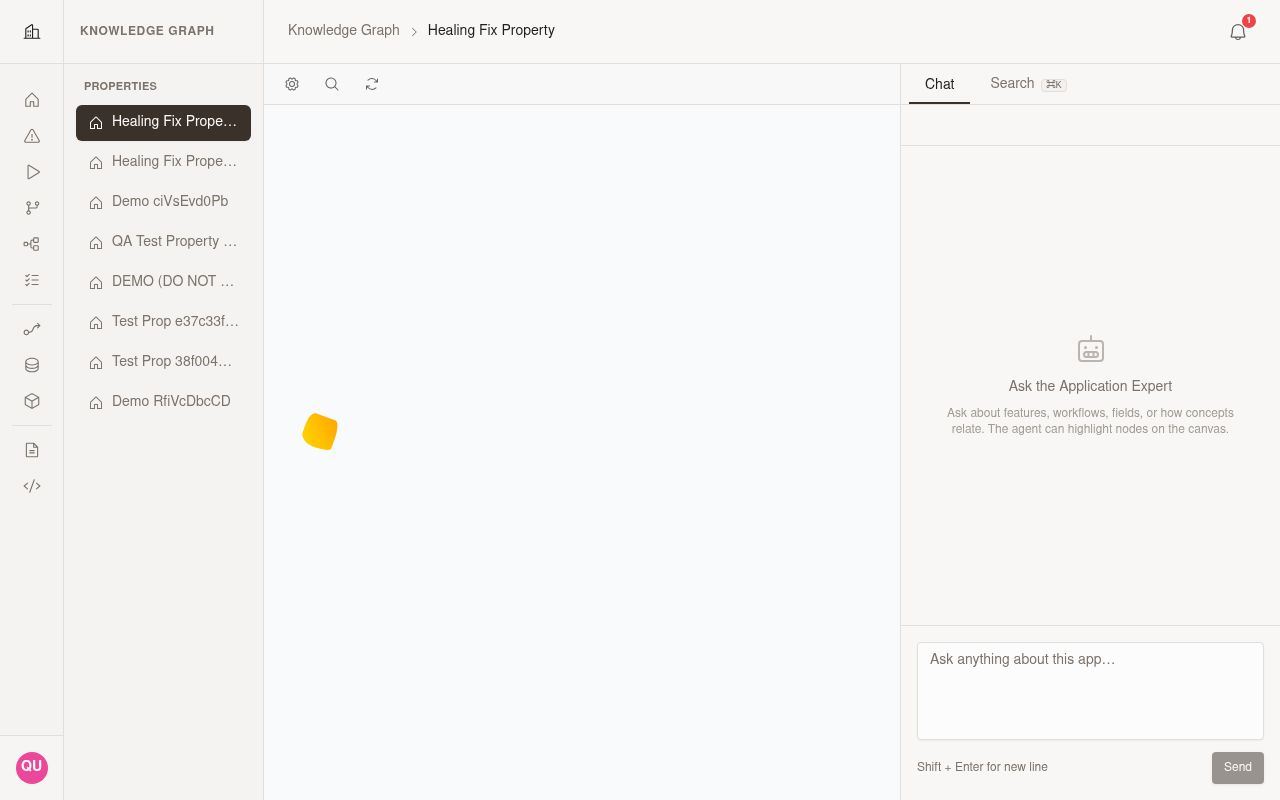
To start exploration:
- Open Knowledge Graph.
- Complete the guided setup chat.
- Select one or more credentials when prompted.
- Answer the setup questions so Canary can seed the app map.
- Start discovery and wait for Canary to populate the workspace.
- Continue into the workspace to review the graph or ask expert questions.
Use the guided setup chat when you want Canary to start from the most relevant parts of your app instead of beginning with an empty workspace.
Run on a schedule
Use scheduled discovery when your app changes regularly and you want the graph to stay current. Open Settings to turn the schedule on or off and keep recurring discovery aligned with your current credential selection.
| Schedule choice | What it does |
|---|---|
| Manual only | Discovery runs only when you start it |
| Daily schedule | Discovery runs automatically each day |
Choose a schedule that matches how often your app changes. For fast-moving environments, daily discovery helps reduce drift between the graph and your current product state.
Pause, resume, and reset discovery
Use the controls in Settings when you need to temporarily stop updates or rebuild the graph from a clean state. The settings workspace keeps status, scheduling, credentials, and reset or run actions together so you can make discovery changes without leaving the same panel.
| Control | When to use it |
|---|---|
| Exploration status | Check whether discovery is running, idle, or needs attention |
| Run exploration | Start a new discovery run or refresh the current graph |
| Reset graph | Clear the current graph and rebuild discovery from scratch |
Reset the graph carefully. Use it when the current graph no longer reflects the app you want Canary to model.
Good discovery hygiene matters beyond exploration. Workflow agents can use pre-run guidance derived from the Knowledge Graph, so stale or incomplete discovery can reduce the quality of the context they receive before a workflow starts and the briefing content shown in run details.
04Navigate the workspace
The Knowledge Graph workspace is now organized around a streamlined graph area and a dedicated right rail for chat and search. Use the toolbar for graph controls, then move between the canvas, Explore view, and the rail depending on whether you want to inspect, search, or ask a question.
Toolbar controls
Use the toolbar to access the main graph actions, open search from the canvas, and open Settings. The streamlined control layout keeps discovery management in one place while the canvas stays focused on exploration.
As you work in the toolbar, focus on these common tasks:
- Open in-canvas search from the toolbar or press
⌘Kon macOS orCtrl+Kon Windows and Linux - Open Settings to manage exploration status, credentials, scheduling, and graph controls
- Run exploration or reset the graph from the settings workspace
- Move between graph exploration surfaces
Full-screen graph canvas
Use the full-screen graph canvas when you want the most immersive way to explore relationships across discovered concepts. The canvas gives you more room to inspect the graph while keeping the chat and search rail close at hand.
When you search from the canvas, Canary highlights matching nodes and dims non-matching parts of the graph so you can focus on relevant results. Hover over a result to preview where it appears in the graph, then click the result to move focus to that part of the canvas.
Move between the canvas and Explore depending on how you want to work. Use the canvas for spatial exploration and relationship scanning, then switch to Explore when you need a searchable, filterable list.
Search and navigate the graph
Use the dedicated rail for Search when you need to find a feature, field, workflow, or other concept in a large graph. Open search from the right rail or launch it directly from the toolbar with ⌘K or Ctrl+K.
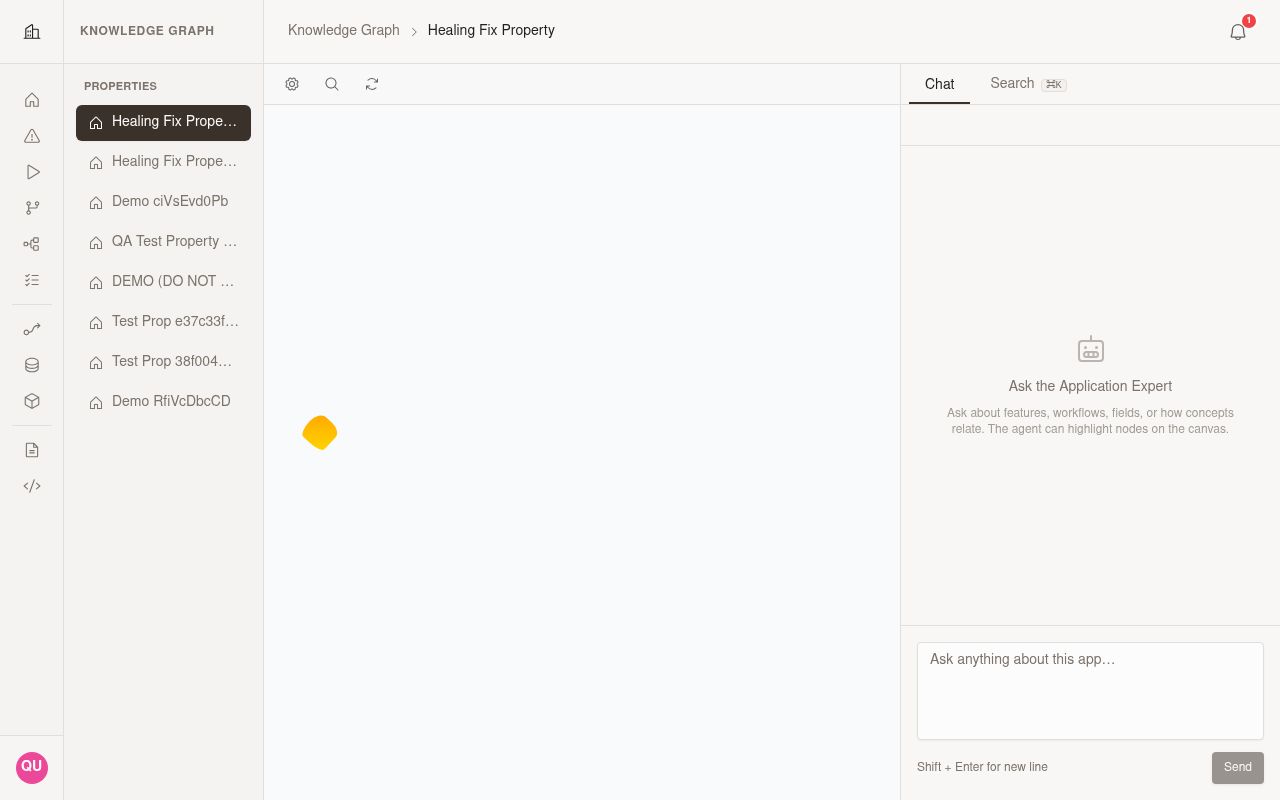
To search and navigate the graph:
- Open Knowledge Graph.
- Click Search in the right rail, or press
⌘KorCtrl+Kfrom the canvas. - Enter a keyword for the concept you want to find.
- Review the result list and hover over a result to preview its location on the canvas.
- Click a result to focus the canvas on the matching concept.
- Refine your query if too many nodes remain highlighted.
Use search when the graph is dense or when you already know what you want to inspect. The highlighted results and dimmed background make it easier to keep your place while you move across large maps.
Settings and exploration controls
Use Settings to manage the current exploration run and the long-term behavior of the graph. This workspace brings together exploration status, schedule, credentials, and maintenance actions in one panel.
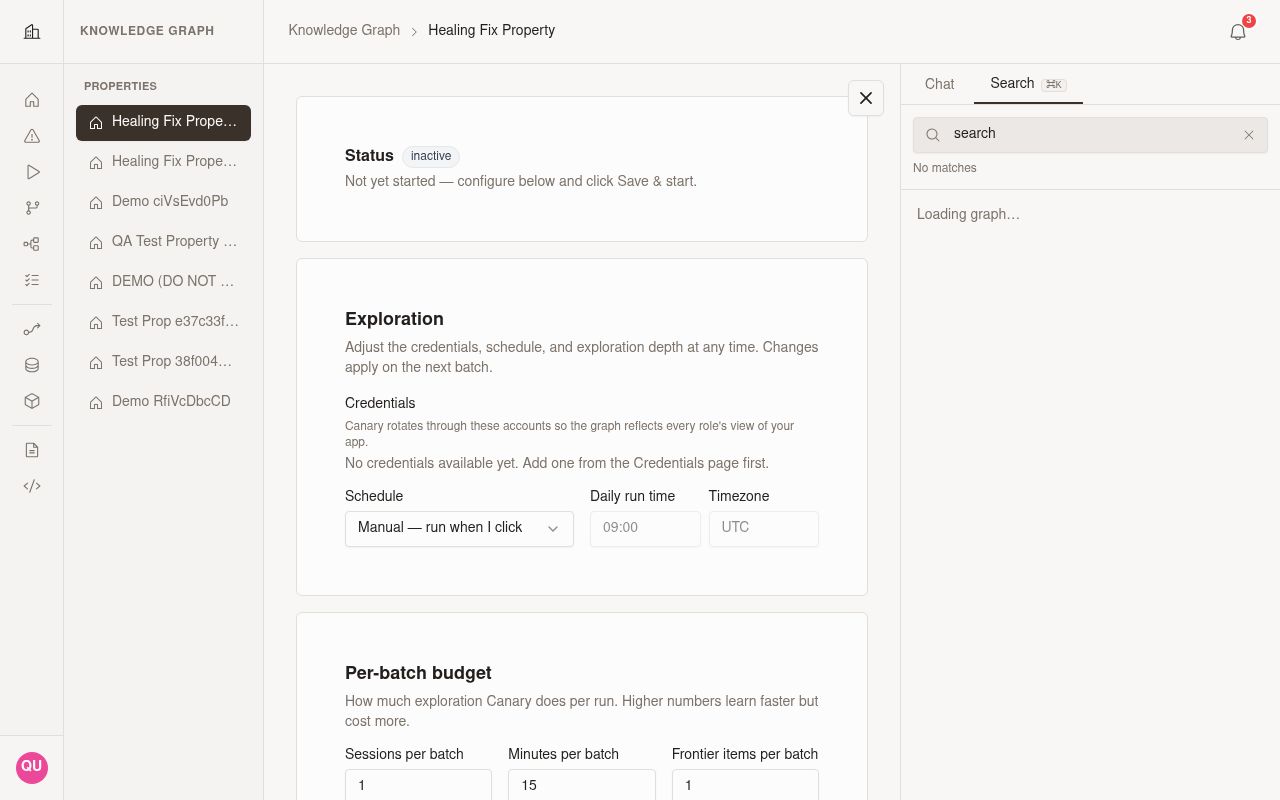
In Settings, you can manage these controls:
| Control | What you can do |
|---|---|
| Exploration status | Check current state before making changes |
| Schedule | Turn recurring exploration on or off |
| Credentials | Add, remove, or review the accounts used for discovery |
| Run exploration | Start a new run when you want to refresh the graph |
| Reset graph | Rebuild the graph from scratch when discovery needs a clean restart |
Open Settings when discovery results look stale, when app access changes, or when you need to confirm that exploration is still running as expected.
Linked repositories or other available code sources can improve discovery quality during exploration. When Canary can analyze those sources alongside app access, it can build a richer graph and surface feature relationships more accurately.
05Best practices
- Start with credentials that cover the most important parts of your app
- Use Explore first if you want to quickly confirm what discovery found
- Use Search to look for features and workflows by the names your team uses most often
- Link repository or code sources when available to improve feature discovery and graph coverage
- Use the Search tab or
⌘K/Ctrl+Kto jump through large graphs faster - Hover over search results before clicking to confirm you are navigating to the right area
- Open concept drawers to inspect details without losing your broader context
- Keep the Ask rail open when you need quick answers while exploring the graph
- Turn on daily scheduling for apps that change frequently
- Maintain graph quality so workflow agents receive better pre-run guidance and more useful briefing content in run details
- Treat graph-derived workflow guidance as advisory context and confirm important run decisions against the live application
- Reset discovery after major environment or permission changes when the graph no longer reflects the right state
- Revisit the graph regularly to confirm Canary is still modeling the right concepts
06Troubleshooting and limits
- If Search is not available, confirm the
application-knowledge-graphfeature flag is enabled for your workspace. - If search returns too many matches, refine the keyword and use hover preview before moving focus on the canvas.
- If the graph looks incomplete, review the selected credentials in Settings and run exploration again.
- If discovery results look outdated, check the exploration status and schedule in Settings before resetting the graph.
- If a reset does not resolve missing concepts, rerun exploration after confirming the right credentials still have access.