Audio Assertions
export const meta = { title: 'Audio assertions', description: 'Capture audio during a workflow run and verify it with measurable checks or natural-language assertions.', tags: ['reference'], };
Audio assertions let you validate sound produced during a workflow run. Use them to confirm that audio plays when expected, has the right basic characteristics, and contains the message or spoken content you want to verify.
01When to use audio assertions
Use audio assertions when a workflow depends on spoken output, alerts, prompts, hold music, or any other audible response. Audio assertions help you catch failures that visual or text-based checks do not detect.
Common use cases include:
- Confirming that a call flow, voice agent, or media experience produces audio at the right point in the run
- Verifying that generated audio is not silent or unexpectedly short
- Checking that a recording includes a required phrase, greeting, disclaimer, or instruction
- Validating scenario-specific spoken output across different workflow inputs and credentials
02How audio assertions work
Audio assertions capture audio from a workflow run, then evaluate that capture against one or more checks. You can use numeric checks for measurable properties or a natural-language prompt for higher-level verification.
Add audio assertions where the run should already be producing the sound you want to test. Review the run result to see whether Canary captured audio successfully and which assertions passed or failed.
Capturing audio during a run
Capture audio at the point in your workflow where playback, speech, or another audible event happens. Canary records the audio available during that part of the run and attaches it to the assertion result.
To configure an audio assertion in a workflow:
- Open the workflow you want to test.
- Add or edit the step where audio should be present.
- Configure the audio assertion settings for that step.
- Save the workflow and run it.

For the most reliable capture, place the assertion after the action that starts audio and avoid adding it before the workflow reaches the relevant state.
Assertion types
Audio assertions support two main styles of validation:
| Assertion type | What it checks | Best for |
|---|---|---|
| Quantitative checks | Measurable audio properties such as duration or silence | Confirming that audio exists and meets basic thresholds |
| Natural-language verification | Whether the audio contains expected spoken meaning or phrasing | Validating prompts, greetings, disclaimers, and other spoken content |
Use quantitative checks when you need a strict, repeatable signal. Use natural-language verification when you care more about what was said than the exact waveform.
Duration and silence checks
Duration and silence checks help you validate basic audio quality and presence before you inspect content.
Use duration checks to confirm that audio lasts long enough to be meaningful or does not exceed an expected limit. Use silence checks to detect missing playback, dead air, or recordings that contain too little audible content.
| Check | What it verifies | Example use |
|---|---|---|
| Minimum duration | Audio lasts at least a defined amount of time | Confirming that a spoken greeting actually plays |
| Maximum duration | Audio does not run longer than expected | Catching loops or repeated playback |
| Silence level or silence threshold | Audio is not entirely silent or does not contain excessive silence | Detecting failed playback or dead air |
Choose thresholds that match real user behavior. If your workflow includes natural pauses, allow enough margin so expected pauses do not create false failures.
Natural-language audio verification
Natural-language verification checks whether the captured audio communicates the message you expect. Instead of matching exact wording, you describe what the audio should contain in a prompt.
Use this type of assertion to verify:
- A greeting or welcome message
- A required disclaimer or compliance statement
- A support prompt or next-step instruction
- Scenario-specific spoken details such as account type, appointment time, or order status
Write prompts that focus on the key meaning you need to validate. If the audio can vary slightly between runs, describe the required content rather than every exact word.
03Configuring audio assertions in a workflow
Configure audio assertions directly in the workflow step where you want Canary to evaluate sound output. Add the assertion after the workflow action that causes audio to play, then choose the checks that match your test goal.
A typical setup includes:
- Identify the step where the audio should be available.
- Enable the audio assertion for that step.
- Add one or more quantitative checks, a natural-language verification prompt, or both.
- Save the workflow.
- Run the workflow with the scenario you want to validate.
When you test multiple variations, combine audio assertions with scenarios so each run checks the right spoken output for that path. For more on scenario-based testing, see /docs/reference/scenarios.
04Interpreting results and failures
After the run completes, open the run result to review the audio assertion outcome. Canary shows whether audio was captured and which checks passed or failed.
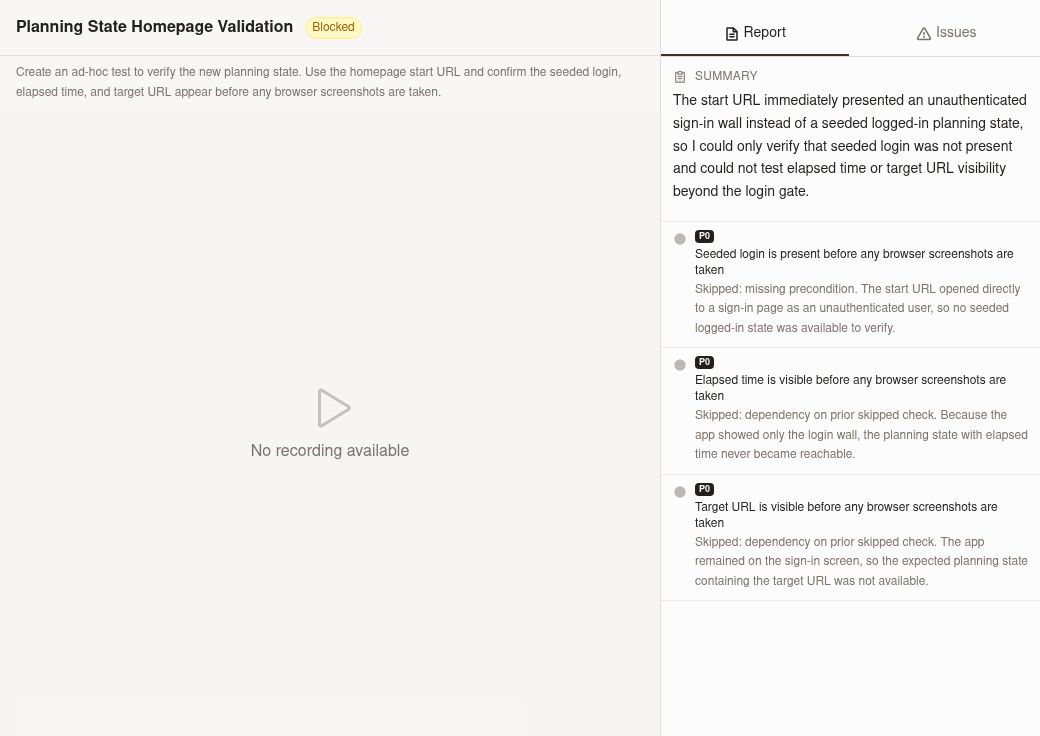
Use failures to narrow down the issue:
| Failure pattern | What it usually means | What to do next |
|---|---|---|
| No audio captured | The workflow did not reach the expected audio state, or audio did not play | Confirm the step timing and verify the workflow path |
| Duration check failed | Audio was shorter or longer than expected | Adjust the threshold or investigate incomplete or repeated playback |
| Silence check failed | The capture contains too much silence or no meaningful sound | Verify that audio output started and was audible during the run |
| Natural-language check failed | The spoken message did not match the expected meaning | Review the prompt, then confirm the workflow produced the correct content |
If a failure appears only in certain runs, compare the scenario used for each run. Different inputs, credentials, or workflow branches can produce different spoken output. For broader run analysis, see /docs/reference/run-history.
05Best practices
- Add audio assertions only after the workflow reaches the point where sound should be available.
- Start with duration or silence checks to confirm that audio exists before you validate content.
- Keep natural-language prompts specific to the outcome you care about.
- Allow reasonable margin in thresholds for pauses, latency, or minor variation between runs.
- Use scenarios to test different spoken outputs without duplicating the entire workflow.
- Review failures in the context of the full run so you can separate audio issues from earlier workflow problems.
06Related
/docs/reference/scenarios/docs/reference/run-history/docs/reference/workflows/docs/reference/test-suites